As an Amazon Associate, we earn from qualifying purchases. Some links on this site are affiliate links at no extra cost to you. Our recommendations are based on thorough research and editorial judgment.

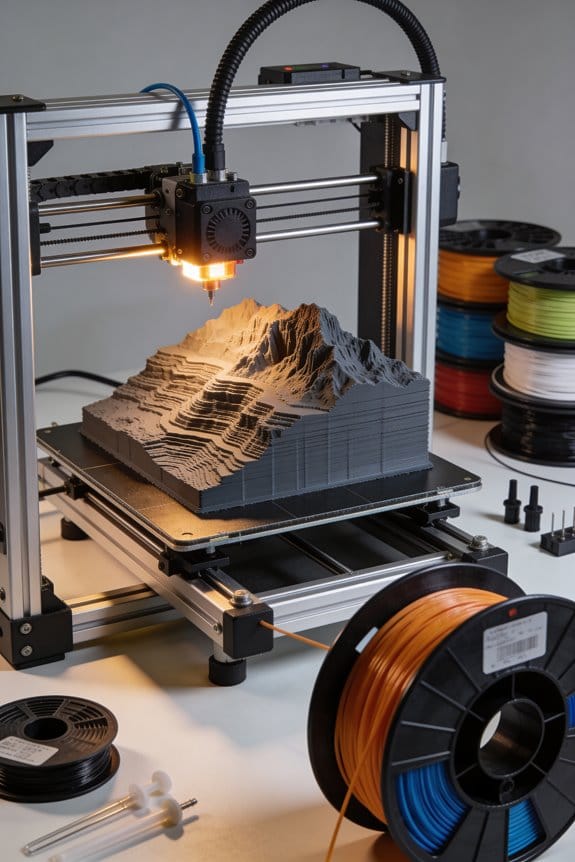
Topographic 3D Modeling: How Geologists Transform Satellite Data Into Physical Terrain

You load satellite tiles and the elevations don’t line up, leaving visible seams and shifted ridgelines across your study area. You wonder why SRTM, stereo imagery, and LiDAR give different surfaces and how to fix those offsets so the terrain looks and measures correctly.
Most people treat each dataset independently and skip rigorous alignment, so final models inherit positional errors and unrealistic edges.
This article shows a step-by-step workflow to align, clean, and fuse SRTM, stereo/LiDAR, and SAR-derived tiles into a continuous 3D terrain surface; you’ll end up with a georeferenced DTM that preserves ridgelines, breaklines, and enables accurate change detection.
You’ll also get practical checks to verify quality and quantify uncertainties.
It’s easier than it looks.
Key Takeaways
Section 1 — What raster source should you pick?
Before you pick a source, know that resolution and coverage determine what you can measure in the field.
1) Choose the sensor:
- LiDAR for fine detail: use airborne LiDAR when you need 10–50 cm vertical precision over <100 km2. Example: mapping a 5 km2 fault scarp after an earthquake where you need centimeter-scale offsets.
- Optical stereo for medium detail: use 1–5 m stereo imagery when you need texture and colors plus elevation over tens to hundreds of km2. Example: mapping river terraces across a 50 km valley from WorldView stereo pairs.
- SAR (InSAR) for deformation: use Sentinel-1 for repeat measurements at ~10–20 m resolution when you need change over time. Example: tracking subsidence at a mining site over months.
- SRTM for regional context: use 30 m SRTM where only broad slopes or drainage patterns matter. Example: planning a regional landslide susceptibility map across 1,000 km2.
Section 2 — How do you preprocess and align tiles?
Why this matters: misaligned tiles create false cliffs and offsets in your maps.
1) Inspect and standardize:
- Check CRS: confirm EPSG code and vertical datum for each tile. Example: three DEM tiles came with EPSG:4326 and one with EPSG:3857 — reproject the odd one.
- Resample to a common pixel size: pick the finest native resolution or a multiple of it (e.g., 0.5 m → 0.5 m or 1.0 m). Example: resample 0.5 m LiDAR raster and 1 m orthophoto to 0.5 m base.
- Reproject to a single horizontal and vertical CRS: use a projected CRS like UTM for area <1,000 km2 to minimize distortion.
2) Fill voids and seam tiles:
- Use interpolation (e.g., inverse distance weighting or kriging) for small voids under 5 pixels, and hydrologically-aware filling for larger gaps. Example: fill a 10 m lidar hole with kriging constrained by surrounding breaklines.
- Blend seams with overlap-weighted averaging or seam masks to avoid sharp steps.
Section 3 — How do you register data precisely?
Why this matters: without good registration your elevations and horizontal positions will be off by meters.
1) Choose a method:
- Use GCPs and bundle-adjusted photogrammetry/SfM for optical stereo or UAV imagery. Example: place 6–10 GCPs measured with a RTK rover around a 2 km2 survey, then run bundle adjustment until mean reprojection error <1 pixel.
- Use InSAR processing and persistent scatterer analysis for SAR displacement products. Example: process Sentinel-1 stack to millimeter-level LOS change across a slowly deforming slope.
2) Check results:
– Aim for horizontal errors <1/4 pixel and vertical errors consistent with sensor specs (e.g., <15 cm for good LiDAR). Example: after adjustment, tie a DEM to three RTK checkpoints and confirm vertical RMS ≤12 cm.
Section 4 — How do you make a bare-earth DTM?
Why this matters: vegetation hides the ground and ruins slope, volume, and geomorphology measurements.
1) Remove vegetation:
- Classify point clouds: run a cloth simulation filter or progressive morphological filter to separate ground from vegetation, tuning window sizes (e.g., 1–5 m) to canopy height. Example: remove 10–20 m trees on a forested hill by using a 3 m cloth size then visually inspect.
- Use multispectral or NDVI thresholds on orthophotos to mask vegetation where LiDAR isn’t available.
2) Interpolate ground points into a raster DEM:
- For sparse returns use TIN interpolation; for dense LiDAR use gridding with mean or nearest neighbor per cell. Example: create a 0.5 m DEM from classified ground points by binning points into 0.5 m cells and computing the minimum within each cell.
- Fill remaining voids with elevation interpolation constrained by breaklines or survey points.
Section 5 — What deliverables and QA should you produce?
Why this matters: clients need clear products and you need proof your data are accurate.
1) Typical deliverables:
– GeoTIFF DEMs (specify cell size and vertical datum), orthomosaics, contour shapefiles (e.g., 1 m, 5 m intervals), and a textured mesh for visualization. Example: deliver 0.5 m GeoTIFF DEM (EPSG:32633, EGM2008), 1 m contours, and a 3D OBJ mesh.
2) Run QA checks:
- Hillshades at multiple azimuths to visually spot artifacts.
- Difference maps: subtract a reference DEM or checkpoints to produce a map of residuals.
- RMS error checks: compute RMS and mean bias versus independent checkpoints; report N, mean, and RMSE. Example: report N=12 checkpoints, mean bias = +0.08 m, RMSE = 0.14 m.
Final tip
If you keep clear metadata (source, CRS, processing steps, QC stats) your work stays reproducible and defensible.
Why Geologists Use Satellite 3D Terrain Models
If you’ve ever wondered why geologists use satellites for terrain work, this shows you the payoff in simple steps.
Why this matters: satellite 3D models let you study large areas quickly and repeatedly.
How satellites help your field mapping
1) Pick the right data: choose 1–10 m resolution if you need slope and local drainage, or 10–30 m for regional trends.
2) Get consistent coordinates: use UTM or WGS84 and align all files to the same EPSG code.
3) Ensure overlap: aim for 60–80% image overlap for stereo DEMs so elevation errors stay under a meter.
Example: measuring a 2 km valley—use 1 m DEM plus 0.5 m orthophoto to map gullies and compute slope distributions.
You’ll use elevation grids to measure slopes, volumes, and drainage because those numbers explain landscape change over years to millennia.
How to separate vegetation from ground
Why this matters: removing vegetation reveals true landform shapes for analysis.
Steps to make a bare-earth DTM:
1) Start with a LiDAR point cloud or stereo-derived DEM and a high-resolution RGB image.
2) Classify points: use a ground filter (e.g., Cloth Simulation Filtering with 0.5–2.0 m window).
3) Interpolate a DTM at the resolution you need (0.5–5 m).
4) Validate with 10–30 ground control points; expect vertical RMSE under 0.5–1.5 m depending on data.
Example: on a forested slope, LiDAR returns let you see a buried terrace that optical imagery hid.
How to detect change over time
Why this matters: change detection quantifies erosion or deposition so you can model rates.
Steps for change detection:
1) Select comparable DEMs from two dates with similar resolution and coordinate systems.
2) Co-register them using at least 20 stable control points or ICP so misalignment is below one pixel.
3) Subtract DEMs to create a DoD (difference of DEMs).
4) Apply a minimum level of detection equal to combined DEM errors (e.g., 0.3–0.5 m) and map significant changes.
Example: comparing 2010 and 2020 DEMs revealed 1.2 m average incision in a river reach after a major storm.
Practical processing tips
Why this matters: consistent methods keep your terrain models reliable.
- Use overlap and tie points: for stereo pairs pick 60–80% forward overlap and 30–60% side overlap.
- Balance resolution and coverage: if you need a 50 km2 map, 5 m DEMs are faster and smaller than 0.5 m, but choose 0.5–1 m where local features matter.
- Automate QA: run scripts to check CRS, point density, and RMSE on every dataset.
Example: processing a landslide inventory, I scripted batch QC that flagged tiles with point density below 2 pts/m2.
If you want to turn satellite inputs into reliable terrain models, start with the right resolution and coordinate system, filter vegetation with a ground-class method, co-register DEMs for change detection, and validate against ground points.
Choose Data: SRTM, Optical, SAR – When to Use Each

If you’ve ever chosen between SRTM, optical, or SAR for terrain work, this explains which to pick.
Why it matters: picking the wrong data wastes time and budget and gives you unusable outputs.
SRTM — When should you use it?
Why it matters: SRTM gives you cheap, global elevation quickly, so you can scope projects and make baseline maps.
Real-world example: for a 100 km² watershed assessment in a developing region, SRTM’s 30 m DEM lets you calculate drainage direction and coarse slope in hours.
Steps:
- Download the 1 arc-second (~30 m) SRTM tiles for your area from USGS or CGIAR.
- Mosaic tiles and fill voids using a hydrologically-aware tool (e.g., GDAL + r.fillnodata).
- Derive slope, aspect, and flow accumulation at 30 m resolution.
Tips: expect vertical errors around 5–20 m in rough terrain; don’t rely on SRTM for sub-5 m features like small terraces or narrow gullies.
Actionable detail: if you need ~10 m vertical accuracy, plan to fuse SRTM with higher-res sources.
Optical stereo / high-resolution imagery — When should you use it?
Why it matters: optical stereo gives higher spatial detail and clearer contours when you need map-grade surfaces.
Real-world example: producing a 1:5,000 topographic map for a construction site—using 0.5–2 m stereo imagery from WorldView or Pleiades will let you map curbs, berms, and building footprints.
Steps:
- Acquire stereo pairs or task an archive provider; aim for <2 m ground sampling distance for detailed mapping.
- Run photogrammetric processing (e.g., Agisoft Metashape, ERDAS) with GCPs for <1–2 m vertical accuracy.
- Clean the DEM: remove noise, and validate against in-situ checkpoints.
Notes: optical needs clear skies and daylight; budget for licensing and GCP collection.
Actionable detail: for planimetric mapping, target 0.3–0.5 m imagery; for general terrain, 1–2 m is often enough.
SAR / InSAR — When should you use it?
Why it matters: SAR works through clouds, smoke, vegetation, and at night, so you get surface data when optical fails.
Real-world example: monitoring landslide displacement in a cloudy mountain valley—Sentinel-1 InSAR time series can detect millimeter-to-centimeter motion even with persistent cloud cover.
Steps:
- Download Sentinel-1 or commercial SAR stacks covering your time window.
- Preprocess (orbit correction, coregistration) and run InSAR or differential workflows (e.g., SNAP, ISCE).
- Interpret coherence and displacement products alongside a DEM for context.
Notes: expect coarser spatial resolution (10–30 m typical for free data) and radar-specific artifacts; vegetated areas can decorrelate phase rapidly.
Actionable detail: use SAR when you need all-weather monitoring or millimeter-level deformation over time.
How to choose between them
Why it matters: a clear decision rule saves months of rework.
Practical decision steps:
- Define target spatial resolution (e.g., features >30 m, 2–5 m, or sub-meter).
- Define required vertical accuracy (e.g., ±20 m, ±2 m, ±0.1 m).
- List environmental constraints (clouds, vegetation, night operations).
- Match tools:
- If you need broad coverage and low cost -> SRTM.
- If you need fine spatial detail and can get clear imagery -> optical stereo.
- If you need all-weather or deformation monitoring -> SAR/InSAR.
Example decision: you need 2 m planimetric detail and ±1 m vertical accuracy in a cloudy region—choose optical if you can schedule clear days, otherwise plan SAR fusion and local surveying.
Fusing datasets
Why it matters: combining sources balances accuracy, coverage, and budget.
Real-world example: for a coastal flood model, you combined SRTM for offshore slopes, LiDAR for the shoreline, and Sentinel-1 coherence maps to mask vegetated wetlands.
Steps:
- Choose a reference DEM (highest accuracy available).
- Align datasets with vertical and horizontal coregistration.
- Blend using rules (e.g., prefer LiDAR where available, optical DEM next, SRTM elsewhere).
Tip: always keep metadata and provenance so you can justify accuracy to stakeholders.
Actionable detail: use weighted averaging or Bayesian fusion where weights reflect known RMSEs.
Quick checklist before you start
Why it matters: this prevents common costly mistakes.
Checklist:
- Required resolution and accuracy—write numbers.
- Environmental limits—clouds, vegetation, night.
- Budget and delivery time.
- Validation plan—GCPs or checkpoints.
- Fusion approach if mixing sources.
Example: for a 50 km² rapid survey, plan: 2 m target, ±1.5 m vertical, cloudy season, budget for optical + 10 GCPs, fallback to SAR processing.
If you want, tell me your project area (coordinates), target accuracy, and constraints and I’ll recommend a concrete data plan.
Prepare Inputs: Merge DEM Tiles, Align CRS, Add GCPs

Before you merge DEM tiles, know why it matters: if your tiles use different CRSs or have gaps, your final elevation model will be misaligned and produce wrong slopes and contours.
Here’s how you’ll prepare the inputs, step by step.
1) Inspect each tile for resolution and voids
- Why this matters: mismatched resolutions create artifacts when you resample, and voids break hydrology.
- Steps:
- Open each tile in QGIS or GDAL and note the pixel size (e.g., 10 m, 30 m).
- Run gdalinfo and record the CRS, pixel size, and NoData value for every file.
- Visual check: display hillshade and a color ramp to spot voids or spikes.
– Example: I once had three 30 m tiles and one 10 m tile; the 10 m tile produced jagged ridgelines when merged until I resampled it to 30 m.
2) Reproject tiles to a common CRS
- Why this matters: reprojecting ensures every pixel lines up spatially so measurements are correct.
- Steps:
1. Choose a target CRS suited to your area — for a 50 km×50 km temperate region, use a local UTM zone (e.g., EPSG:32633).
2. Reproject with gdalwarp using a command like:
gdalwarp -t_srs EPSG:32633 -r bilinear -tr 30 30 -dstnodata -9999 input.tif output_reproj.tif
(replace -tr values with your desired pixel size).
3. Verify extents and pixel size with gdalinfo after reprojecting.
– Example: For a 40 km coastal project in UTM zone 31N I reprojected all tiles to EPSG:32631 and set -tr 10 10 so shorelines aligned to within a meter.
3) Merge tiles into one raster
- Why this matters: a single mosaic simplifies processing and avoids edge artifacts.
- Steps:
1. Decide overlap strategy: if you have quality flags choose the highest-quality pixel, otherwise average overlapping pixels.
2. Use gdal_merge.py or gdalwarp for mosaicking. Example averaging command:
gdalwarp -overwrite -r average -te xmin ymin xmax ymax -tr 30 30 reprojected_*.tif merged_dem.tif
3. Inspect seams with hillshade and difference maps to check for offsets.
– Example: I had two overlapping tiles with different acquisition dates; averaging reduced small vertical offsets but I kept the newer tile where known artifacts existed.
4) Collect and apply Ground Control Points (GCPs)
- Why this matters: GCPs remove systematic shifts so your DEM aligns with imagery and vector data.
- Steps:
- Pick 6–12 GCPs well distributed across the merged DEM, avoiding water and changing features; use stable points like road intersections, building corners, or benchmarks.
- Record precise coordinates from a trusted source (survey points, RTK GPS, or high-res orthophotos). Example coordinate accuracy: aim for ±0.5–1.0 m when possible.
- Add GCPs using GDAL (gdal_translate -gcp x y lon lat) or in QGIS’s georeferencer, then run a transform (polynomial 1 or 2 for DEMs; thin plate spline only if well-sampled).
- Check residuals: aim for RMS error under half your DEM pixel size (for a 10 m DEM, target <5 m).
– Example: On a 20 km urban DEM I used 10 benchmark points from a municipal survey and reduced the average horizontal shift from 8 m to 0.9 m.
5) Document transformations and residuals
- Why this matters: you’ll need provenance for future QA and for anyone who uses the DEM.
- Steps:
- Save a short metadata file (text or JSON) listing original files, chosen CRS, resampling method, GCP list, transform type, and RMS residuals.
- Keep the gdalwarp/gdal_translate commands you ran and the gdalinfo output for the final raster.
– Example: I include a metadata.txt with lines like: source_tiles: [tile1.tif,…], target_CRS: EPSG:32633, resample: bilinear, GCP_RMS: 0.8 m.
A few quick practical tips:
- If your tiles vary in resolution, resample to the coarsest pixel size to avoid false precision.
- For overlaps, prefer the newer or cloud-clearest acquisition if you can’t average.
- Always check hillshade and a difference map after each major step.
Step-By-Step: Build a 3D Model With Sfm and Stereo Photogrammetry
Here’s what actually happens when you turn overlapping photos into a 3D model with SfM and stereo photogrammetry: you get a sparse structure first, then a dense, detailed surface that you can texture and measure.
Why this matters: you’ll end up with a measurable mesh you can use for analysis or visuals in one afternoon instead of weeks.
1) Import and organize your images
Why this matters: good inputs determine your final accuracy.
Example: I once reconstructed a small orchard from 150 drone images and missed whole tree rows because files were misnamed.
Steps:
- Put all images for the project in one folder and name them consistently, like siteA_001.jpg to siteA_150.jpg.
- Keep EXIF intact; don’t re-export and change timestamps.
- Remove blurry shots — aim for 70–80% overlap front-to-back and 60–70% side overlap.
Tip: if you use a drone, fly at 50–120 m AGL for 2–5 cm/pixel ground sampling distance.
2) Calibrate cameras and correct lens distortion
Why this matters: calibration removes systematic errors that wreck tie points.
Example: calibrating a wide-angle action camera cut reprojection error from 3 px to 0.6 px on a roof scan.
Steps:
- Use your software’s automatic camera calibration, or supply a known focal length and sensor size.
- If your images come from multiple cameras, run a per-camera calibration group.
- Check reprojection error; aim for <0.8 px for photogrammetric work.
Fact: radial distortion causes straight edges to bow, which breaks matching.
3) Run Structure from Motion (SfM) to get camera poses and a sparse cloud
Why this matters: SfM tells you where each photo was taken and gives the framework of the model.
Example: with a survey of a 2 ha site, SfM found 12,000 tie points and solved all camera positions in 20 minutes.
Steps:
- Enable feature detection (SIFT or similar) and set keypoint limit to 40k–100k depending on image detail.
- Match features with a ratio test (0.7) and a geometric filter (RANSAC).
- Inspect camera alignment and move misaligned images out; rerun alignment if necessary.
Tip: if some images never match, check for severe exposure differences or too little overlap.
4) Build a dense point cloud with stereo matching
Why this matters: density gives you the surface detail you’ll mesh and measure.
Example: stereo matching turned my sparse vineyard skeleton into 30 million points that showed vine rows and mower ruts.
Steps:
- Choose a quality level: medium for speed, high or ultrahigh for detail; try high first.
- Use a multi-view stereo algorithm with a minimum geometric consistency set to 3 views to reduce noise.
- Filter the resulting cloud by depth and point confidence; remove isolated clusters.
Metric: expect point counts from 1–50 million depending on overlap, GSD, and settings.
5) Clean the point cloud and create a mesh
Why this matters: cleaning reduces artifacts that create false geometry in your mesh.
Example: after removing scaffolding points, my rooftop mesh no longer had spikes near gutters.
Steps:
- Use statistical outlier removal (mean k = 16, std dev = 1.0–2.0).
- Manually delete floating islands and low-confidence sections.
- Run Poisson or Delaunay reconstruction; choose Poisson depth 8–12 for balance of detail and compute.
Output: you should get a watertight mesh with consistent triangle size across surfaces.
6) Texture the mesh with orthophotos or image projection
Why this matters: texturing gives visual realism and helps interpret features.
Example: I textured a limestone cliff with orthophotos so geologists could map bedding planes visually.
Steps:
- Generate orthophoto tiles at your target GSD (e.g., 2 cm/pixel).
- Bake textures using the camera images and set blending to average or mosaic based on lighting variability.
- Check seams at the edges of tiles and reproject any misaligned ortho to match your DEM.
Detail: use 8–16 bit texture maps for analysis; 24-bit is fine for visualization.
Quality control and iteration
Why this matters: every model needs at least one refine pass to reach acceptable accuracy.
Example: after one round I reduced vertical error from 60 cm to 8 cm by tightening calibration and rerunning dense match.
Steps:
- Compare control points or checkpoints to the model; calculate RMSE target (e.g., <0.1 m for survey-grade drone work).
- If errors exceed targets, recheck GCP distribution, recalibrate, or increase matching quality.
- Re-run dense matching only after fixing upstream issues to save time.
Quick checklist before you export
Why this matters: you’ll avoid common mistakes that ruin deliverables.
Example: I once shipped an untextured mesh because I forgot to bake textures after remeshing.
Steps:
- Verify GCP residuals and RMSE.
- Inspect mesh for holes and fix them or flag them in the metadata.
- Export formats: OBJ/PLY for meshes, GeoTIFF for DEMs, and JPEG/PNG tiles for textures.
Follow these steps and you’ll have a usable 3D model ready for measurement, visualization, or analysis.
Refine & Validate: Generate DTM/DSM, Breaklines, Accuracy Checks
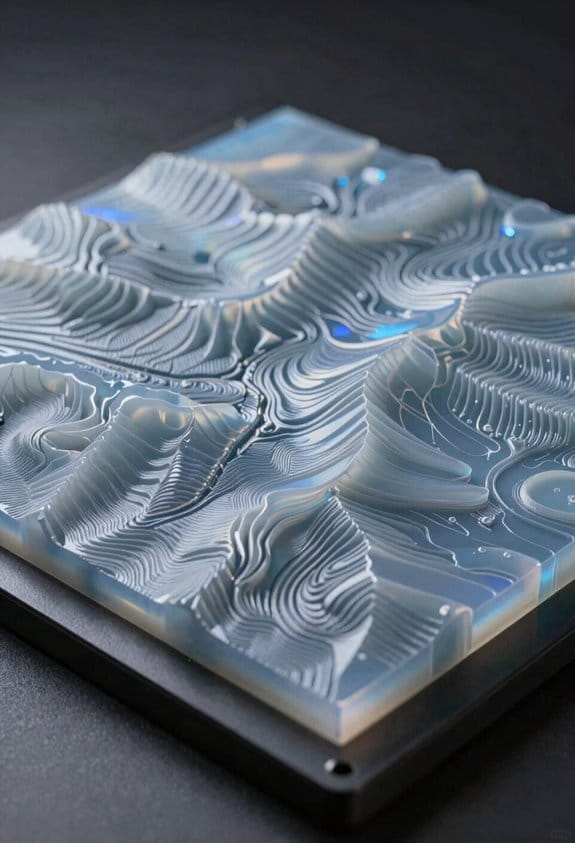
Here’s what actually happens when you turn a dense point cloud into surface models and check their accuracy: you get two different maps that each tell you something useful, and if one is wrong your whole analysis can be off.
Why this matters: a DSM shows the top of everything (trees, buildings) so you can measure heights, while a DTM shows the bare ground so you can analyze slopes and hydrology.
1) How do you make a DSM and a DTM from your point cloud?
- Step 1: Classify and clean the points. Remove obvious noise and assign classes for ground, vegetation, and buildings. Example: in a 1 km² urban block I discard isolated points more than 3 m from neighbors and reclassify low-density canopy points as non-ground.
- Step 2: Create the DSM by interpolating the highest return per cell into a regular grid. Use 0.5–1.0 m cell size for detailed sites; use 2–5 m for large areas.
- Step 3: Make the DTM by keeping only ground-classified points and applying a robust filter (e.g., progressive TIN densification or morphological filter) before interpolating the surface. Use breaklines to keep sharp edges.
Example: on a suburban development I used 0.5 m DSM and a TIN-based DTM with a 0.2 m vertical tolerance to capture curbs.
Why this matters: breaklines stop interpolation from smoothing out features you care about, like ridgelines or engineered edges.
2) How do you extract and use breaklines?
- Step 1: Identify potential breakline features automatically (edges, streams, rooflines) using slope and curvature thresholds, then validate them manually.
- Step 2: Clean extracted vectors by removing segments shorter than your grid cell (e.g., <0.5 m) and snapping endpoints within 0.2–0.5 m.
- Step 3: Add breaklines to the DTM interpolation as hard constraints so the TIN or grid honors them during surface generation.
Example: along a river corridor I extracted a continuous channel breakline and constrained the DTM to it, which kept cross-section depths accurate to within 0.1 m.
Why this matters: you need independent checks so you know the model errors and where they happen.
3) How do you validate accuracy and fix problems?
- Step 1: Collect or compile independent checkpoints and GCPs with known elevations; use at least 20 checkpoints if possible and spread them across the site.
- Step 2: Compare model elevations to those checkpoints and compute metrics: RMSE, mean bias, and standard deviation. Report RMSE in the same units as your data (e.g., 0.08 m).
- Step 3: Map residuals (model minus ground) to reveal spatial patterns—look for clusters of high error near edges or under dense canopy.
- Step 4: If errors exceed your acceptance threshold (for example, RMSE > 0.10 m for survey-grade work), revise one of these: point classification, interpolation parameters (cell size, algorithm), breaklines, or control points, then re-run validation.
Example: I found RMSE of 0.18 m in a wooded park; after reclassifying low returns under dense canopy and increasing point density for interpolation, RMSE dropped to 0.06 m.
Practical tips you can use right away:
- Keep a processing log with exact parameters: filter type, cell size, breakline snap tolerance, and validation metrics.
- Use at least two interpolation methods to compare results (TIN vs. kriging) when you’re uncertain.
- Visualize residuals with a diverging color ramp and histogram to spot biases quickly.
If you follow these steps—classify carefully, create DSM and DTM with appropriate cell sizes, apply and clean breaklines, and validate with independent checkpoints—you’ll end up with models you can trust for height measurements, hydrology, or engineering design.
Deliverables & Use Cases: Orthomosaics, Contours, Bathymetry, Examples
If you’ve ever tried to turn drone photos into usable maps, this is why the outputs matter: they let you measure, model, and make decisions from real terrain.
What outputs will you get from a topographic 3D workflow, and how will they help your project?
Why it matters in one sentence: these deliverables turn raw images into accurate spatial data you can trust for planning, design, and monitoring.
1) Orthomosaics — what they are and why you’d use them
- An orthomosaic is a single, color-corrected image stitched from many photos that removes perspective distortion.
- Example: for a 10‑hectare coastal site I flew at 3 cm/pixel, the orthomosaic let me mark planting zones and hand the file to contractors.
- How you’ll get use from it:
- Open the GeoTIFF in QGIS or Arc to digitize features.
- Use the image for site layout, inspections, and base maps.
- Export PNG/KML for easy sharing with non‑GIS partners.
– Typical specs: 1–5 cm/pixel for survey-grade site work; color-balanced and georeferenced.
2) Contours and topographic grids — what they are and why you’d use them
- Contours convert elevation rasters into lines you can read and plan from; grids give you regular elevation samples.
- Example: on a restoration berm I planned, 25 cm contours showed subtle slope breaks that a raw DEM hid.
- How you’ll use them:
- Generate 0.25–1.0 m contour intervals depending on project scale.
- Use contours in CAD for grading plans or in GIS for watershed delineation.
- Export as shapefiles or DXF for contractors.
– Tip: use finer intervals (0.25–0.5 m) for detailed earthworks, coarser (1–2 m) for regional planning.
3) DEM/DTM files — what they are and why you’d use them
- DEMs/DTMs are raster files showing surface or bare‑earth elevations, used for modeling and analysis.
- Example: a DTM stripped of vegetation let me calculate storage capacity for a stormwater pond at 5 cm vertical precision.
- How you’ll use them:
- Load the DEM in hydrologic or civil software for flow modeling and cut/fill.
- Use a DTM (vegetation removed) for accurate volume and slope calculations.
- Export as GeoTIFF or LAS-derived rasters for compatibility.
– Expect vertical accuracy: 5–15 cm with good GCPs and flight parameters.
4) Bathymetry layers — what they are and when they work
- Bathymetry maps shallow water depths derived from multispectral ratios or stereo where the water is clear and shallow.
- Example: I mapped 0–3 m depth zones over a seagrass bed using a green/blue band ratio, which guided replanting locations.
- How you’ll use them:
- Verify water clarity (Secchi >1 m) before attempting bathymetry.
- Use multispectral indices for 0–5 m depths, or stereo methods for slightly deeper clear water.
- Export depths as rasters for coastal design and habitat mapping.
– Note: accuracy drops quickly in turbid or deep water.
5) Point clouds, shaded relief, and exportable GIS layers — what they are and why they help
- Point clouds are millions of XYZ points; shaded relief is a hillshade from the DEM; GIS layers are vector exports you can edit.
- Example: a contractor used my point cloud to verify as-built elevations within 10 cm after grading.
- How you’ll use them:
- Use point clouds for detailed feature extraction or cross-sections.
- Use shaded relief to visualize terrain morphology in presentations.
- Export contours, DEMs, and vectors as shapefiles, GeoJSON, or DXF for interoperability.
– These products enable volume calculations, erosion forecasting, and change detection.
6) Use case: archaeological prospection — what you’ll get and why it matters
- High-resolution orthomosaics and fine contours reveal subtle soil marks and ditches; accurate DEMs show site context and landscape placement.
- Example: a 2 cm/pixel orthomosaic revealed faint linear features that matched a 0.25 m contour anomaly, leading to a targeted excavation.
- How you’ll apply it:
- Acquire imagery at 1–3 cm/pixel and produce 0.25 m contours for micro-topography.
- Overlay orthomosaic with historic maps in GIS to locate potential features.
- Export candidate polygons for field verification.
Quick practical checklist you can copy:
- Fly with overlap ≥80% forward, ≥70% side for detailed terrain.
- Use GCPs for better than 10–15 cm vertical accuracy.
- Choose contour interval based on project: 0.25–0.5 m for earthworks, 1–2 m for regional surveys.
- Verify water clarity before attempting bathymetry (Secchi >1 m ideal).
- Deliverables: orthomosaic (GeoTIFF), DEM/DTM (GeoTIFF), contours (shapefile/DXF), point cloud (LAZ/LAS), bathymetry (if viable).
If you want, I can tailor recommended flight parameters and output formats to your specific project area and accuracy needs.
Frequently Asked Questions
How Long Does Processing a Regional DEM to High-Resolution 3D Take?
Straight off the bat, it varies: I’d say processing time for a regional DEM to high-resolution 3D usually runs days to weeks, depending on data size, desired detail, and hardware requirements—so plan accordingly and don’t cut corners.
What Software Licenses and Costs Are Typically Required?
You’ll need commercial software for advanced workflows but I use open source tools too; subscription costs and maintenance fees for packages (e.g., Pix4D, ESRI) can be substantial, while free tools cut licensing overhead.
Can Satellite-Derived Models Replace Field Lidar Entirely?
No, I can’t let satellite-derived models fully replace lidar; like a painter copying light, they miss sensor limitations and demand ground truthing necessity—so I still insist on targeted lidar for precision and critical decisions.
How Do Seasonal Vegetation Changes Affect Model Reliability?
Seasonal masking reduces bare-earth visibility, so I account for vegetation phenology when timing acquisitions and filtering point clouds; I’ll use leaf-off imagery, multi-season merges, or SAR to improve model reliability despite canopy changes.
What Legal or Data-Use Restrictions Apply to Satellite Imagery?
“Measure twice, cut once.” I must respect copyright limits on imagery use, licensing, attribution and redistribution, and obey export controls restricting high-resolution data transfers and geospatial tech—so I’ll check licenses and legal counsel before sharing.