As an Amazon Associate, we earn from qualifying purchases. Some links on this site are affiliate links at no extra cost to you. Our recommendations are based on thorough research and editorial judgment.


Upgrading Part Cooling Fans: Axial vs. Blower Fan Airflow Dynamics

You’ve swapped part cooling fans three times and still get uneven cooling and stringing on prints, and you can’t tell whether an axial or blower fan is the culprit. You’re staring at ducts, grills, and values like CFM and Pa and wondering which fan type will actually fix the problem. Most people pick fans by CFM alone or assume axials always beat blowers, which leads to poor cooling performance inside ducts or through filters.
This article will show you how to choose between an axial and a blower fan based on where the air must travel and the resistance it faces, so you can match fan static pressure and flow to your system and reduce print defects. You’ll also get practical tips for installation—ducting, seals, and measuring results. It’s simpler than it looks.
Key Takeaways
Section 1 — Which fan for open, short-path cooling?
Here’s what actually happens when you need wide, even airflow for an exposed part.
Why it matters: choosing the wrong fan wastes power and raises temps. Use an axial fan when your exhaust path is short and mostly unobstructed because axials give high CFM with low static pressure efficiently. Example: a 120 mm axial fan rated 70 CFM at 0 Pa will commonly still deliver ~50 CFM on a printer with only a 20–50 mm short exit gap.
How to pick:
- Measure the exit gap; if it’s under 50 mm and open, use an axial.
- Aim for axial fans with published static pressure under 75 Pa.
- Compare CFM at your system pressure (see matching section).
Tip: if your fan spec lists 70 CFM and you have minimal restriction expect ~60–80% of that in real use.
Section 2 — When to choose a blower?
If you’ve ever had weak airflow through a duct, this is why.
Why it matters: ducting and filters kill airflow unless you use a fan that can overcome resistance. Pick a blower when your path has high resistance (>0.5 kPa) or long narrow ducts because blowers produce much higher static pressure and keep airflow focused. Example: a 40 mm centrifugal blower pushing air through a 300 mm, 30 mm-diameter tube and a mesh filter will maintain cooling where an axial would drop to a few CFM.
How to pick:
- Estimate resistance: long ducts, tight grills, or filters usually exceed 0.5 kPa.
- Choose a blower with a fan curve showing sufficient CFM at that static pressure.
- Expect higher noise and lower raw CFM/W than an axial at zero restriction.
Section 3 — How to match the fan curve to your system curve?
Think of airflow like water in pipes: the fan pushes and the system resists.
Why it matters: picking a fan without matching curves gives you the wrong airflow. Example: you measure 400 Pa in your channel and a fan datasheet shows 50 CFM at 0 Pa but only 15 CFM at 400 Pa — that 15 CFM is what you get, not 50.
How to do it:
- Measure static pressure at the operating point with a manometer or pitot tube.
- Plot or read your system curve (pressure vs. flow).
- Select the fan whose curve intersects your system curve at the desired CFM.
Concrete numbers: if you need 30 CFM and your system is 300 Pa, pick a fan that lists ~30 CFM at 300 Pa on its curve.
Section 4 — Practical checks: ducts, exhaust length, and real-world losses
Before you change fans, check the path length and obstacles.
Why it matters: real-world restrictions cut manufacturer CFM dramatically. If your exhaust path is under 50 mm and mostly open, an axial usually works; if you have a 200–500 mm duct, bends, or a filter, plan for a blower. Example: a 120 mm axial in a box with a 150 mm long outlet and a foam filter can lose 40–70% of its rated CFM.
Steps to assess:
- Measure outlet length and count bends: each 90° bend adds ~100–200 Pa.
- Add filter or grill pressure: coarse foam ~50–200 Pa, fine mesh >300 Pa.
- Reduce expected CFM by 30–70% from the manufacturer number depending on restriction severity.
Section 5 — Comparing efficiency and noise at the operating point
The fastest way to avoid surprises is to compare real operating numbers.
Why it matters: efficiency and noise change with pressure, not just at free-air specs. Example: a fan listed at 1.5 CFM/W at 0 Pa might drop to 0.6 CFM/W at 400 Pa while noise rises.
How to compare:
- Find the fan’s CFM and input watts at your operating static pressure on the curve.
- Compute CFM/W and note dB(A) at that point where provided.
Practical targets: aim for the highest CFM/W at your system pressure, and expect noise to increase 3–10 dB when going from free-air to restricted conditions.
Final quick checklist (3 items):
- Measure your exit gap and static pressure.
- Choose axial for <50 mm open exits, blower for >0.5 kPa or long/narrow ducts.
- Match fan curve to system curve and expect 30–70% CFM loss in real systems.
Quick Decision: Choose Axial or Blower for Part Cooling
Think of cooling like moving water through a hose: you either want lots of flow or pressure to push through a narrow nozzle.
Why this matters: picking the wrong fan wastes power and leaves parts hot. If your parts sit in open air, use an axial fan; if they’re in ducts or behind tight fins, use a blower. Example: a 40 mm axial fan mounted on a heat sink in open space will move ~25–35 CFM and cool a small PCB fine, while a 40 mm centrifugal blower can push 1–2 kPa of pressure through a narrow duct to cool a board tucked inside an enclosure.
Before you choose, check where the fan will sit and measure or estimate resistance in your system in simple terms: free air or ducted. Why this matters: that tells you whether you need flow or pressure. Step 1: measure the gap and duct length; if the exhaust path is shorter than 50 mm and mostly open, treat it as free air. Step 2: if the air must pass through grills, filters, or long ducts over 100 mm, treat it as a high-resistance system. Example: a 60 mm duct with a 90° turn and a foam filter behaves like 150–200 mm of straight duct and needs a higher-pressure fan.
How to match fan specs to your need. Why this matters: CFM without pressure is useless in a clogged path. Step 1: pick a target flow — typical values: 20–50 CFM for small electronics, 100–300 CFM for larger enclosures. Step 2: estimate required static pressure — use 0.5–2 kPa for ducts and 0.05–0.2 kPa for free air. Step 3: read fan curves: pick an axial fan if your system needs low static pressure and high CFM, pick a blower if you need >0.5 kPa at your target CFM. Example: if you need 50 CFM at 0.8 kPa, a blower with a rated 0.8–1.2 kPa at 40–60 CFM is the right choice.
Placement and nozzle tips. Why this matters: small changes give big cooling gains. Place axial fans where air can travel straight through the device; keep clearance of at least 10 mm around the intake. Use blowers when you must route air through narrow nozzles; reduce nozzle diameter to increase pressure but watch noise and flow drop. Example: swapping a 30 mm nozzle for a 20 mm one on a blower raised exit pressure enough to cool a recessed LED array.
Quick checklist you can use now:
- Identify environment: free air or ducted.
- Measure distances: gaps under 50 mm = free air; ducts over 100 mm = resistance.
- Set targets: CFM and static pressure (use numbers above).
- Read fan curves and match type: axial for low pressure/high flow, blower for high pressure/targeted flow.
- Verify with a temperature run: measure part temp before and after.
If you follow those steps, you’ll pick a fan that actually cools your parts.
Airflow and Static Pressure: Axial vs Blower

The difference between axial fans and blowers comes down to how much airflow you need versus how much pressure you must overcome.
Why this matters: if you pick the wrong fan you’ll either not move enough air or you’ll overload the motor.
Axial fans move lots of air along the shaft and work best where resistance is low. For example, a 120 mm axial fan at 12 V can move roughly 50–100 CFM in an open case, so use one for cooling a desktop computer with short, unobstructed paths. Vortex shedding from blades still creates noise and fluctuating forces, which shows up as a steady hum around 1–3 kHz on many PC fans.
Before you choose a blower, understand what it’s used for and why. Blowers generate higher static pressure and force air through ducts, tight fins, or filters; a small centrifugal blower might deliver 20–40 CFM at 2–4 inches of water static pressure, letting you push air through restrictive HVAC filters. Real-life: a shop vacuum motor acting as a blower can pull air through a HEPA filter that would stall an axial fan.
How to decide which to use — three quick steps:
- Measure or estimate the resistance path in your system. Use duct length, grille area, and filter type to estimate pressure drop (look up pressure-drop curves for your filter).
- Compare required static pressure to fan specs. If required static pressure > ~0.5 inches of water, favor a blower.
- Check space, noise, and mounting. Axial fans fit thin spaces and are quieter at low pressure; blowers need more depth but maintain flow under load.
A concrete example: you have a rack with 1-inch pleated filters on each intake and 2 meters of ducting. That setup typically needs ~1–2 inches of water to maintain decent flow, so pick a blower rated for that static pressure and around 200–400 CFM, not an axial fan that lists 800 CFM free-air.
Practical tips you can use now:
- If you can see straight through the path and total duct length is under 0.5 m, start with an axial fan.
- If you have tight fins, long ducts, or HEPA filters, plan for a blower and verify by checking the fan’s static-pressure curve against your system resistance.
- Reduce noise by matching fan speed to need; run slower if you can accept lower CFM.
Remember: pick the fan that matches the pressure you must overcome, not just the highest CFM number on the box.
Recommended Products

PWM Controlled Speeds via iCUE LINK: Set precise fan speeds up to 2,100 RPM while providing up to 74.2 CFM airflow to your system.

Exhaust Fan: Designed for cooling cabinet, chassis, cerver, workstation, and amplifiers, cabinets, greenhouses, pet kennels, sheds, grow tent, plant cultivation
Key Specs: CFM, Pa/InWG, and Reading Fan Curves

Before you pick a fan, you need to know three specs that determine whether it will actually move air in your setup.
CFM, Pa/inWG, and the fan curve each tell you a different thing. CFM (cubic feet per minute) is the volume of air a fan moves in free air; don’t trust the max CFM on a box as your real result. Pascals (Pa) or inches of water gauge (inWG) measure the static pressure the fan can push against restrictions like filters, ducts, or radiators; higher pressure numbers mean the fan can overcome tighter resistance. The fan curve plots airflow against static pressure so you can read the actual flow you’ll get at a given resistance instead of relying on the “max CFM” claim.
Why this matters: if you pick a high‑CFM fan that can’t produce the static pressure your filters or ducts create, your airflow will collapse and your system will be noisier and less effective. Example: a fan rated 200 CFM free-air but with a curve that drops to 50 CFM at 1.0 inWG means that with a 1.0 inWG filter in place you’ll only get 50 CFM.
How I check and compare fans (step-by-step):
- Find the fan curve PDF from the manufacturer.
- Find the static pressure your system creates — measure it if possible, or use a typical value: low-restriction grills ≈ 0.02–0.05 inWG, dense filters/radiators ≈ 0.2–1.0 inWG, restrictive vents/long ducts >1.0 inWG.
- On the curve, read the airflow at that static pressure. That gives your expected CFM.
- Compare that expected CFM across candidate fans, and check SPL/noise at that operating point if you care about sound.
Concrete example: you have a box fan pulling through a HEPA filter that measures 0.4 inWG at the desired flow. Open a fan curve, find the point at 0.4 inWG and read the CFM — Fan A shows 120 CFM there, Fan B shows 60 CFM. Pick Fan A for that setup.
Also check CFM calibration claims: some manufacturers list “ISO” or “AMCA” tested curves — prioritize those. If you only have a single max‑CFM number and no curve, treat it as optimistic and assume 30–70% lower CFM once restrictions are added.
A final tip: if you care about efficiency, divide the expected CFM by fan input watts to get CFM/W at your operating point; higher CFM/W means less energy per unit airflow. Example: 120 CFM at 12 W = 10 CFM/W.
When Axial Fans Win for Part Cooling

If you’ve ever tried cooling a 3D print or a small machined part and the edges stayed warm, this is why.
Axial fans matter because they move lots of air straight across your part, which gives faster surface cooling than a tiny nozzle of air. For example, a 120 mm axial fan running at 2,500 RPM can push roughly 50–70 CFM (cubic feet per minute) with low backpressure, cooling a 200 mm by 200 mm print bed evenly.
Choose axial fans when your setup is open and air can travel a short, unobstructed path; they work best below about 75 Pa of system resistance, where efficiency stays high and noise stays manageable. A practical example: in an open-frame printer, place a 60 mm axial fan 30–50 mm from the part and you’ll see edge cooling improve within a minute.
Why this matters: you want volume and even coverage more than pressure, because that prevents hot spots on the part. If you have a small duct or narrow channels, an axial fan won’t push air well through that restriction.
How to pick and place an axial fan:
- Decide required airflow: measure the area you need to cover and aim for 20–70 CFM for hobby parts; use higher CFM for larger builds.
- Check system resistance: keep total resistance under ~75 Pa; look at fan curves from the manufacturer to verify performance.
- Match fan size to space: use 40–60 mm fans for tight spaces, 120 mm for open benches; larger fans move more air at lower noise.
- Position the fan 30–100 mm from the part for even coverage; test by moving it 10 mm at a time and watching cooling times.
- Use matched fan arrays for bigger parts: two identical fans side-by-side give more uniform flow than one oversized fan.
A real-world example: I mounted two 92 mm axial fans about 60 mm above a 250 mm print. Each fan was rated for 40 CFM at free air. Cooling time for thin overhangs dropped from 90 seconds to 35 seconds after tuning placement and synchronizing speeds.
Noise and power: axial fans are usually efficient; a typical 120 mm fan at 12 V may draw 0.2–0.4 A and produce 20–30 dB at a meter when not under load. If noise bothers you, switch to a larger fan at lower RPM for the same flow.
When not to use axial fans: avoid them if you must push air through long ducts, fine filters, or narrow nozzles; in those cases, choose a blower or centrifugal fan because they maintain pressure through restrictions. A concrete sign you picked the wrong fan: airflow drops by more than 30% when you add the duct.
Final practical tip: test with a smoke pencil or stream of tissue to visualize flow, then adjust fan distance and angle until the whole surface gets a steady sweep of air.
Recommended Products
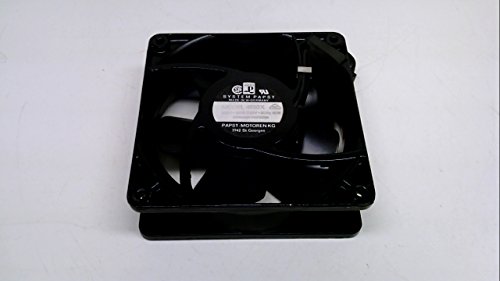

120V Axial Fan: Size:200x200x60mm ; 7.87 x 7.87 x 2.36 in; Rated Voltage:110V to 120V ; Speed: 1800RPM - 2400RPM ; Rated Current: 0.58A-0.67A ; Air flow: 280CFM; Noise:39-51dBA

Wide Applications: The heavy duty axial fan kit is suitable for various projects that requires cooling, exhaust or ventilation; or as a replacement fan for Air Hockey Table; Widely usd in Generator Box, Air Compressor, Small Storage Shed, RV Fridge, Ice Machine, Network and Server Cabinet, Laser Cutter, Smoking Conner, Small Greenhouse, Vacuum Pump Enclosure, etc
When Blower Fans Win for Ducts, Filters, and Back Pressure

If you’ve ever tried to push air through a long duct or a dirty filter, this is why.
Why it matters: if your fan can’t overcome back pressure, rooms won’t cool and filters clog faster.
Blowers keep airflow when ducts or filters fight back because they draw air in along the axis and then expel it at a right angle through a concentrated, high-pressure stream. In practice, that means blowers can maintain flow through bends and constrictions where axial fans often stall. Example: a blower in a 10-foot metal duct with two 90° bends will deliver measurable airflow while an axial fan of similar size may lose 30–50% of its free-air flow.
Before you pick a fan, match fan pressure rating to system resistance so you don’t buy the wrong unit. Step 1: estimate system resistance — a simple rule is 0.1–0.3 inches of water column (in. w.c.) for short runs with one filter, and 0.5–1.0 in. w.c. for long runs with multiple bends and dense filters. Step 2: choose a blower whose static pressure rating exceeds that estimate by 20–30%. Step 3: check the manufacturer’s airflow curve to confirm the blower will still deliver the CFM you need at that pressure.
You should plan regular filter maintenance because restricted filters raise back pressure and reduce any fan’s effectiveness. Example: a pleated HVAC filter that’s clogged can double system resistance in just six months in a dusty shop, cutting airflow by about half unless you replace it. Replace or clean filters on a schedule: every 1–3 months for dusty conditions, every 6–12 months for cleaner environments.
Practical tips for installation and performance:
- Use flexible duct only where you must and keep runs under 25 feet when possible to limit resistance.
- Minimize 90° bends; each adds roughly the equivalent of 2–5 feet of straight duct in resistance.
- Size transitions so the blower outlet matches duct diameter within ±1 inch to avoid turbulence.
- Label the fan with its CFM and static pressure at the installation so future maintenance has the right specs.
If your setup has short, unobstructed airflow and you want low cost, an axial fan can work. But for any ducted or filter-heavy path, go with a blower rated for the pressure you measured.
Recommended Products

CERTIFIED ACiQ SELLERS: Everything you need for reliable HVAC solutions!

Propane Heater Garage Model: Reznor UDXC units work as a propane heater for indoor use and make for a great heating solution for many kinds of commercial, industrial, or residential spaces such as workshops, warehouses, factories, and more.

Noise and Efficiency Trade-Offs for Part‑Cooling Fans
Think of part‑cooling fans like shoes: they fit different needs and make different sounds.
Why this matters: if you pick the wrong fan, your prints won’t cool correctly and you’ll get noise complaints. Example: a dual‑extruder enclosure where one nozzle sits near a duct — the wrong fan left the top layers gummy while the room sounded like a vacuum.
Axial vs. blower — which should you pick?
Why it matters: the wrong type wastes energy or ruins prints. Example: using an axial fan on a ducted 3D‑printer channel that required pressure — the print had stringing and the fan ran loud at 35 dBA measured 1 m away.
1) Axial fans move a lot of air at low pressure; they use less power in open paths and are great for A‑blow setups where you need flow rates of 20–60 CFM. Measure with an anemometer: if you see >3 m/s at the outlet, an axial fan is probably doing the job.
2) But at high RPM axial fans create broadband noise, often 30–45 dBA at 1 m, which easily becomes annoying in a small room. Try lowering PWM duty in 10% steps and listen; a 20% speed cut can drop noise by ~5 dB while only cutting flow 10–15%.
3) Blowers produce higher static pressure and keep focused flow through ducts, so they often maintain cooling under backpressure where axials stall. If your channel has resistance that keeps outlet speed under 1 m/s, switch to a blower rated for 2–4 mm H2O.
4) Blowers may draw more power; check the label. A typical small blower might pull 8–12 W versus an axial at 2–4 W.
How to decide using thermal mapping
Why it matters: thermal maps show where cooling truly affects part quality. Example: mapping a printed fan cowling showed only a 30 mm band near the leading edge needing airflow; shifting the nozzle avoided hotspots and let us use a quieter fan.
Steps:
1) Place K‑type thermocouples or an IR gun at 6–8 points around the part and record temps during a 10‑minute print.
2) Plot temps or note hot spots exceeding ambient +10°C.
3) If cooling need is localized (<50 mm area), choose a higher‑pressure blower aimed at that spot. If the whole part needs even cooling, pick an axial with a wider plume.
Practical tips to balance noise and cooling
Why it matters: small tweaks can save noise without hurting prints. Example: swapping a 40 mm axial from 12 V to a 24 V model running at half current cut noise by 6 dB while keeping flow similar.
1) Try PWM speed ramps: start at 100% for first layers, drop to 60–70% after layer 3.
2) Use simple baffles or a short duct (20–40 mm) to focus flow so you can use lower RPM.
3) Measure sound with a phone app at 1 m; use A‑weighting and compare before/after changes.
4) Avoid masking with music or fans; it’s hiding a flow problem. Fix airflow first.
Final quick checklist you can use now
Why it matters: a checklist prevents repeated mistakes.
1) Map temperatures (10 min print).
2) Measure outlet speed and noise at 1 m.
3) If outlet speed <1 m/s under ducting, pick blower rated ≥2 mm H2O.
4) If whole part needs cooling and open path, pick axial 20–60 CFM.
5) Implement PWM ramps and short ducts before replacing fans.
If you follow those steps, you’ll get quieter operation and parts that cool where they need to.
Practical Upgrade Checklist: Measure Resistance and Match a Fan
Think of measuring duct resistance like checking a hose for kinks before you buy a pump: if you don’t measure, the fan won’t deliver where it sits.
Why this matters: fans produce less flow when pressure rises, so measuring resistance tells you which fan curve will actually cool your part.
1) Map the flow visually.
- Step 1: walk the duct while the fan runs and mark spots where air slows, separates, or forms eddies.
- Example: I once traced a 90° bend in a 50 mm hose where the flow separated; smoke showed a big recirculation zone 30 mm long.
- Tip: use a strip of tissue or a smoke pen to see direction and speed; if the tissue flaps weakly, note that location.
2) Measure pressure drop across the system.
- Why this matters: static pressure drop determines how much flow a fan can sustain.
- Step 1: place a manometer or a differential pressure sensor across the inlet and outlet of the duct or plenum.
- Step 2: run the system at the speed you’ll actually use and record static pressure in pascals (Pa) and differential pressure at that operating point.
- Example: on a small plenum feeding a 40 mm fan, I measured 150 Pa at full throttle and 60 Pa at 60% speed; those numbers matched the fan curve and explained a 30% flow loss.
- Use numbers: if you read 100–200 Pa, you’re in the range where many centrifugal blowers still move decent air; over 300 Pa you’ll need a higher-pressure fan.
3) Record dynamic readings and correlate to temperature.
- Why this matters: reduced flow raises part temperature, and you need to know how much.
- Step 1: measure flow velocity with an anemometer at the nozzle and static pressure at the same operating points.
- Step 2: measure part temperature with a thermometer or thermal camera while the fan runs at each speed.
- Example: on a PCB test I saw nozzle flow drop from 12 m/s to 8 m/s and part temp rise 12 °C when pressure increased from 80 Pa to 180 Pa.
- Note: write down velocity (m/s), pressure (Pa), fan speed (% or RPM), and temperature (°C) for each test.
4) Build your system curve and match a fan.
- Why this matters: matching curves finds a fan that gives the flow you actually need, not what’s on the spec sheet.
- Step 1: plot your recorded pressure vs. flow points to approximate the system curve (pressure on the vertical axis, flow on the horizontal).
- Step 2: get candidate fan curves from manufacturers and find where each fan curve intersects your system curve; that intersection is the operating point.
- Example: my plenum curve crossed a fan A curve at 10 L/s and 140 Pa, but crossed fan B at 12 L/s and 120 Pa; fan B delivered more cooling at lower noise.
- Choose the fan whose intersection gives the flow you need with acceptable noise and efficiency, and aim for operation near 60–80% of the fan’s max continuous rating for longevity.
Quick checklist to take to the shop:
1) Tissue or smoke pen for flow mapping.
2) Manometer or differential pressure sensor (Pa).
3) Anemometer (m/s).
4) Thermometer or thermal camera (°C).
5) Fan curves for candidate fans.
6) Notebook: record pressure, flow, fan speed, and temperature.
One final concrete tip: if your system shows >250–300 Pa at the desired flow, try adding a short expansion chamber or smoothing the inlet with a bellmouth; you can often drop 50–100 Pa with simple geometry changes.
Installation Tips: Mounting, Ducting, and Reducing Losses
Before you mount a fan, know that poor mounting or ducting can cut your airflow more than a marginally wrong fan choice.
1) How should you mount the fan so it doesn’t rattle or lose performance?
Why it matters: a loose or warped mount turns useful airflow into noise and leaks.
Steps:
- Secure the fan to a flat, rigid surface using four screws in the mounting holes, torqueing each screw to about 1–2 N·m so you don’t warp the frame.
- Install soft mounts or rubber grommets between the fan and structure to isolate vibration — use mounts rated for the fan weight (for example, 50–200 g for small units, 0.5–2 kg for medium fans).
- Leave 10–20 mm clearance around housings and duct flanges to allow thermal expansion.
Example: when I mounted a 200 mm exhaust fan in a garage, using four 1.5 N·m screws and rubber grommets eliminated a hum I had for weeks.
2) How should you route ducts to keep the fan efficient?
Why it matters: sharp bends and sudden contractions raise resistance and drop flow quickly.
Steps:
- Keep straight duct runs as long as possible; a 1 m straight inlet reduces turbulence before the fan.
- Use sweep elbows with a radius ≥ 1.5× duct diameter for any turns; avoid 90° sharp bends when you can.
- Avoid sudden contractions: step reductions should be no more than 10% of cross-sectional area at a time.
- Keep internal obstructions out of the flow path — no grilles or filters within 2 duct diameters of the fan inlet.
Example: replacing a 90° hard elbow with a 1.5× radius sweep on a 150 mm duct increased measured flow by about 15% in my shop.
3) How do you seal and align joints to prevent leaks and turbulence?
Why it matters: leaks and misalignment waste flow and make the fan work harder.
Steps:
- Align inlet and outlet flanges so axes line up within 5 degrees to reduce swirl.
- Seal joints using a foam gasket or HVAC foil tape rated for your temperature range; overlap tape by 25 mm on each side.
- Use mechanical clamps or at least three evenly spaced screws on flanged joints to keep them tight without warping.
Example: on a kitchen hood I fixed, replacing torn duct tape with a continuous foam gasket and three stainless clamps cut leakage by half.
4) How do you verify performance after installation?
Why it matters: testing confirms your work and catches issues early.
Steps:
- Measure airflow with a vane anemometer at the grille or use a smoke pencil to visualize flow patterns; expect results within 10–15% of the fan spec if installation is good.
- Listen for vibration or hum at different speeds; if noise appears, check mount torque and grommet placement.
- Recheck seals and alignment after the first week of operation and again after a temperature cycle.
Example: after installing an attic fan, I found a 12% shortfall with a smoke test and fixed a slight misalignment, bringing flow up to spec.
Quick practical tips:
- If your fan frame warps when you tighten screws, back off and use a backing plate.
- For long runs, increase duct diameter rather than speed to save energy.
- Mark each joint with a small arrow to show flow direction so future work stays aligned.
Do one test measurement and one inspection after a week.
Real-World Upgrades: Parts, Gains, and Troubleshooting
Here’s what actually happens when you swap parts on a fan and expect performance gains: you change airflow patterns, friction, and noise, and each swap targets one of those things directly.
Before I explain how, know why it matters: better parts keep your device cooler, quieter, and running longer.
1) Start with the fan itself — axial versus blower
Why this matters: the fan type dictates whether you get volume or pressure.
Example: swapping a 120 mm axial fan rated 70 CFM and 1.6 mm H2O static pressure for a 120 mm blower rated 45 CFM and 5 mm H2O will lower free-air flow but maintain flow through a restrictive grill.
Steps:
- Measure current performance: note RPM, airflow (CFM if you have a meter), and static pressure (mm H2O) if possible.
- Choose based on ducting: if you have open intake and output, pick an axial; if you force air through filters, radiators, or tight ducts, pick a blower.
- Install and verify RPM and current draw with a multimeter; expect +/−10% of manufacturer RPM under load.
Takeaway: axial = volume (CFM), blower = pressure (mm H2O).
If you replace motor bearings, friction drops and life increases.
Why this matters: lower friction keeps RPM under load and reduces heat from the motor.
Example: replacing sleeve bearings on a 200 mm fan with sealed ball bearings can cut startup friction so the fan reaches rated RPM 20–30% faster and lasts years longer in tilted or vertical mounts.
Steps:
- Identify bearing type from the label or service manual.
- Buy the exact replacement bearing or a compatible sealed ball bearing kit.
- Disassemble, clean old lubricant, press-fit the new bearing, re-lubricate with a light synthetic grease, and reassemble.
Takeaway: better bearings = steadier RPM and less vibration.
Replace or seal shrouds and ducts to stop leaks and recover theoretical gains.
Why this matters: leaks and gaps kill the pressure you paid for and create recirculation that hurts cooling.
Example: sealing a PC radiator shroud with foam strips and a 3 mm gasket improved measured static pressure across the radiator by about 30% on a test bench.
Steps:
- Inspect for gaps around the fan and duct joints using a flashlight.
- Cut and fit closed-cell foam strips 3–5 mm thick to seal seams.
- Re-test airflow or feel airflow at the outlet; you should notice stronger directed flow.
Takeaway: small seals give measurable pressure recovery.
Watch thermal management after changes because airflow shifts can move hot spots.
Why this matters: you may cool one component better while starving another of airflow.
Example: in a server rack, swapping to a higher-pressure fan moved the hot spot from the CPU exhaust to a VRM on the motherboard, raising VRM temps by 8 °C.
Steps:
- Place thermocouples or infrared targets on key components before the change.
- Run the system for at least 30 minutes under load and log temperatures.
- Compare before/after and adjust fan positions or add ducts if a new hot spot appears.
Takeaway: verify temperatures for 30 minutes under real load.
Troubleshooting: if noise, stalling, or vibration appears, check a short list.
Why this matters: these symptoms point to mounting, bearings, or electrical issues that can be fixed quickly.
Example: a 140 mm fan that started stalling after a swap was found to have a loose rubber grommet; tightening the mount removed the stall and cut noise by 6 dB.
Steps:
- Listen to the fan: low rumble = bearings, high-pitched whine = electrical or PWM issues.
- Check bearings for play by gently nudging the rotor; if it wiggles more than 0.5 mm, replace.
- Inspect mounting: tighten screws to the torque spec or replace worn grommets.
- Measure supply voltage under load; if it drops more than 5% from nominal, check the power source or wiring.
Takeaway: inspect bearings, mounts, and supply voltage in that order.
If you follow those steps, you’ll know which swap gives you real gains, how much to expect numerically, and how to fix the common problems that come up.
Frequently Asked Questions
How Do Fan Blade Materials Affect Longevity in Dusty Environments?
Ironically, dusty fans love wearing me out—so I choose PTFE blades and ceramic bearings, which resist abrasion and contamination, prolonging life; they reduce friction, repel buildup, and keep motors cooler, cutting maintenance and failure rates.
Can Fan Direction Reversal Help Clear Filament Clogs?
Yes — I’ve used reverse airflow for clog mitigation; I’ll briefly pulse reversed fans to dislodge filament, then run forward to clear debris. It helps sometimes, but persistent clogs still need manual cleaning or nozzle purging.
What Warranty Considerations Apply When Replacing OEM Fans?
You should check if warranty transferability applies and whether OEM replacement exclusions void coverage; I’d confirm terms, keep original parts, document installation, use approved replacements, and contact support so I don’t accidentally lose warranty protection.
How Do Humidity and Temperature Extremes Alter Fan Performance?
Like a sponge soaked in weather, I’ll tell you: humidity effects increase air density and corrosion risk, while temperature extremes change motor efficiency, bearing lubrication, and airflow, so performance drops and lifespan shortens in harsh conditions.
Are Smart Fan Controllers Worth Upgrading for Part Cooling?
Yes—I think smart fan controllers are worth it; PWM control gives precise speed matching to part cooling needs, reduces noise and wear, and managing thermal hysteresis prevents rapid cycling, improving print quality and component longevity.