As an Amazon Associate, we earn from qualifying purchases. Some links on this site are affiliate links at no extra cost to you. Our recommendations are based on thorough research and editorial judgment.

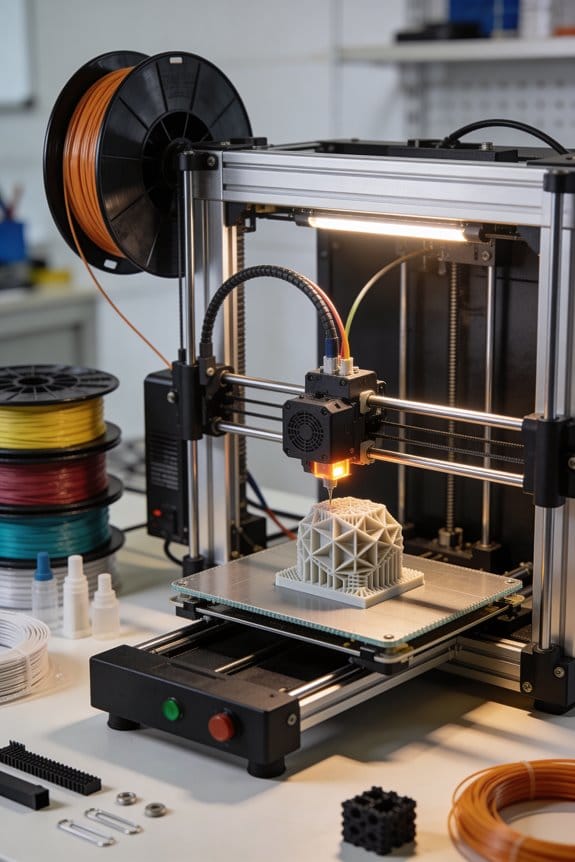
Parametric CAD Modeling: the Shift From Mesh Modification to Solid Body Design

You stare at a 3D print and the shop drawing side by side, unsure why the part you printed won’t meet the tooling dimensions. The exact question hanging over your workbench is: how do I move from a messy mesh edit to a CAD model that guarantees manufacturable dimensions and driven relationships?
Most people assume exporting a cleaned mesh into CAD is enough and skip rebuilding the parametric features that control tolerances. This piece will show you a step-by-step mesh-to-CAD approach: how to fit surfaces, recreate parametric features, and export STEP/PMI so parts match drawings and CNC tooling.
You’ll end with a reproducible solid model workflow that reduces rework and keeps assemblies accurate. It’s easier than it looks.
Key Takeaways
If you’ve ever opened a CAD file and wished you could change one dimension without breaking everything, this explains why parametric CAD helps.
Parametric CAD stores exact dimensions and relationships so your parts manufacture reliably and pass QA. For example, set a hole diameter to 6 mm and link it to a shaft size; when you change the shaft to 8 mm, the hole updates automatically. This matters because you avoid re-measuring and reworking drawings before CAM.
The difference between history-based solid modeling and ad-hoc edits comes down to preserving intent. With history-based solids you keep a recorded sequence of features—extrudes, fillets, patterns—so edits propagate across parts and assemblies. A real example: change a boss radius early in the history tree and all downstream features adapt, saving you hours when adjusting fit across an assembly.
Before you export, remember solid bodies give you editable neutral formats like STEP or Parasolid with PMI so downstream tooling sees your design intent. Exporting a STEP with embedded PMI keeps dimensions and tolerances readable by CAM software, which prevents re-annotating setups on the shop floor.
Think of parametric workflows like an organized workshop: they scale better for assemblies, keep file sizes moderate, and maintain consistent constraints. For instance, a 50-part assembly using parametric links will typically stay under a few hundred megabytes, whereas a mesh-based approach can balloon storage and lose constraint relationships.
Mesh modeling still has its place when you need organic shapes or fast concept models. Use mesh tools for sculpting, texture baking for visualization, or quick 3D prints where tolerances are lax; sculpt a character head in a mesh editor and print prototypes at ±0.5 mm without bothering with parametric setups.
When to Choose Parametric CAD vs Mesh Modeling (Quick Guide)
Before you choose a modeling approach, know that picking the wrong one wastes hours converting files and redoing work.
Parametric CAD when you need precise, repeatable parts
Why it matters: Parametric modeling keeps geometry linked so changes update everywhere, which saves time when you tweak dimensions.
1) When to use it:
- Parts with tight tolerances: gears, brackets, clamps where you need ±0.1 mm or better.
- Assemblies with hundreds of parts where relationships matter: hinges that must keep concentric holes after scaling.
- Manufacturing workflows: CNC, sheet metal, and injection-mold tooling that require feature-based drawings and B-rep exports.
2) Concrete example: design a mounting plate that must accept different sensor sizes — create the plate with parametric hole pattern and a single dimension change updates every hole position.
3) Quick steps:
- Start a new part file and sketch primary dimensions (length, width, hole centers).
- Create features (extrude, fillet, hole) with explicit constraints.
- Save an assembly file and insert parts; use mate constraints rather than manual placement.
Technical note: parametric files store feature history, so file sizes often stay moderate even for complex assemblies.
Mesh modeling when you need organic shapes or fast visuals
Why it matters: Meshes are simpler for sculpting and real-time rendering, which speeds creative iteration and animation.
1) When to use it:
- Organic forms: character heads, props, ergonomic handles that need smooth surface detail.
- Concept visuals and VR: game assets or previsualization where you need low-poly and baked maps.
- Rapid surface tweaks: artists who want to push/pull without rebuilding feature trees.
2) Concrete example: sculpting a bike saddle for ergonomics testing — you sculpt the foam shape in a mesh tool, then retopologize for production if necessary.
3) Quick steps:
- Start with a base mesh block and rough out primary volumes.
- Subdivide and sculpt secondary details (creases, seams).
- Retopologize and bake normal maps if you need production geometry.
Technical note: high-res meshes can be large — expect tens to hundreds of megabytes for detailed sculpts; use multiresolution or decimation to manage size.
How to decide in practice
Why it matters: A clear decision rule prevents wasted conversions and mismatched workflows.
1) Decision checklist (use this, yes/no):
- Do you need exact dimensions and drawings? If yes, pick parametric.
- Is the shape organic and visual-first? If yes, pick mesh.
- Will parts go directly to CNC or mold tooling? If yes, pick parametric.
- Is it for games, animation, or rapid concept visuals? If yes, pick mesh.
2) Concrete example: designing a consumer knob that must fit a shaft and look ergonomic — model the mating geometry in parametric CAD, sculpt the outer look in mesh, then finalize mate-critical surfaces in CAD.
3) Practical workflow to avoid rework:
- Define functional geometry in CAD first (mounts, holes, shafts).
- Export a lightweight reference (STEP or low-poly OBJ) to your mesh tool.
- Sculpt visual surfaces and bring back only the final boundary surfaces to CAD if you need manufacturing detail.
Storage, file size, and team workflow
Why it matters: File management impacts collaboration, backups, and CI pipelines.
1) Rules of thumb:
- Parametric projects: file size grows with assembly count, not detail level; expect tens to hundreds of MB for large assemblies.
- Mesh projects: file size grows with polygon count; expect single assets to reach 100+ MB when highly detailed.
2) Concrete example: a 200-part machine assembly might be 200–800 MB in CAD, while a photoreal character set could be several GB in meshes with textures.
3) Collaboration steps:
- Agree on source of truth (CAD for mechanical, mesh repo for art).
- Use lightweight reference exports for cross-discipline handoffs.
- Version files with descriptive names and changelogs.
Final practical rule
Why it matters: Mixing tools without a plan causes the most rework.
1) Two-sentence rule: Use parametric for function and manufacturability; use mesh for shape and visual fidelity. Convert only when a part crosses from concept to production.
2) Concrete tip: when you must combine them, freeze the functional CAD geometry and work on the visual shell in the mesh tool, exporting only resolved boundary surfaces back to CAD.
Recommended Products

The 2ID card software streamlines various card production tasks such as ID card design, printing, and encoding. It's a versatile product suitable for various organizations,...
Why Parametric CAD Matters: Precision, History, and Manufacturing
If you’ve ever needed a part to fit on the first try, this is why parametric CAD matters.
Why it matters: parametric CAD keeps exact dimensions and relationships so your parts match drawings and tooling. For example, when I designed a mounting bracket for a CNC spindle, the hole centers were driven by a single dimension—changing that one value moved every hole, and the bracket fit the spindle on the first assembly. Use parametric CAD when you need repeatable geometry, traceable dimensions, and parts that match manufacturing prints.
How history-based modeling helps: the CAD history records the sequence of edits so you can roll back to a prior state without redoing work. For example, I once needed to revert a part to its state before a counterbore was added; I clicked the feature in the tree and restored the earlier version in seconds. Steps you can follow:
- Keep features named (hole_base, cut_slot) so you can find them later.
- Use the rollback or version feature to test changes on copies.
- Document the dimension that drives the critical interface.
How intent and constraints save time: parametric constraints make your design intent explicit, so mates and relationships update consistently when you change sizes. For example, constrain a shaft diameter to a single parameter and every bearing seat that references it updates automatically. Do this:
- Create parameters for critical sizes (e.g., shaft_dia = 12 mm).
- Reference those parameters in sketches and mates.
- Test a +/- 0.5 mm change to confirm behavior.
How CAD supports manufacturing and QA: models provide solid bodies with tolerances and metadata that CAM and QA can read, reducing handoff errors and speeding production. For instance, exporting a STEP with PMI got the shop the exact tolerance callouts, and the first part met spec without clarification emails. To make this work for you:
- Add dimensions and GD&T as model annotations.
- Export neutral files (STEP or Parasolid) plus the native file.
- Attach a simple checklist: material, heat treatment, surface finish.
Quick pro tips you can use today:
- Name and group features immediately after creating them.
- Lock a few master parameters (two or three) that define the critical interfaces.
- Keep a “manufacturing” configuration with fillets and chamfers removed for CAM toolpaths.
If you follow those steps, you’ll spend less time fixing mismatches, more time iterating designs, and hand parts to the shop with fewer questions.
Recommended Products

![AutoCAD 2022 Software [1 User CPU] [Single User] New.](https://m.media-amazon.com/images/I/41mCC1t5nAL._SL500_.jpg)
Perpetual Full Version. No subscription, no additional fees. Online account not included, so no Tech support . For Win-11 and 10 64-Bit Machines Only

Used Book in Good Condition
When Mesh Modeling Wins: Creative, Organic, and Rapid Prototyping
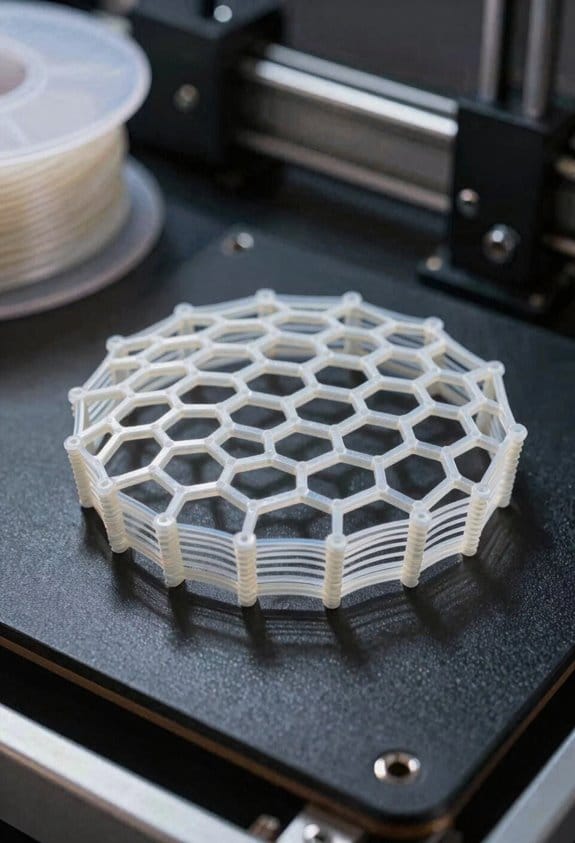
Think of mesh modeling like clay on a workbench.
When you need flowing, natural shapes or want to iterate quickly on a visual concept, mesh tools matter because they let you push and pull geometry like clay instead of defining every edge and constraint. I use mesh modeling for organic sculpting where freeform surfaces and asymmetry make a design feel alive; for rapid prototyping, mesh workflows shave hours off early iterations. Example: when sketching a character head, you’ll block silhouette in 15–20 minutes with a dynamesh-type tool, then spend another 30–60 minutes refining major forms before adding secondary details.
Why use meshes for texture baking? Because they capture high-detail color and normals from a dense sculpt onto a lighter mesh, which speeds up rendering and game use. For example, bake a 4K normal map from a 4–6 million polygon sculpt onto a 20–50k retopologized mesh to keep game performance acceptable. Steps:
- Sculpt high-res detail and subdivide to 4–6M polys.
- Retopologize to 20–50k quads for your target engine.
- UV unwrap with 5–10% margin for shell padding.
- Bake maps at 2048–4096 resolution depending on asset size.
- Export as OBJ/FBX and PNG/TGA maps.
Before you export for manufacturing, you need to prep the mesh for production.
Meshes are messy for machining because they lack the parametric constraints CNC and CAD tools expect; you must convert or clean them. Example: for a 3D-printed lamp base, you’ll need watertight geometry and proper wall thickness. Steps:
- Make the mesh watertight: close holes and remove non-manifold edges.
- Check and set minimum wall thickness — aim for 1.5–3 mm depending on material.
- Simplify or remesh to reduce unnecessary polygons while preserving silhouette.
- Add fillets or chamfers where stress concentrates; use 0.5–2 mm radii based on print orientation.
- Export as STL with binary encoding.
If you want speed over CAD precision, here’s a practical workflow to go from concept to printable part in under a day.
Why this workflow matters: it gets a printable model without fighting parametric constraints. Example: make a prototype phone stand.
- Block the silhouette in a mesh sculpting app (15–30 minutes).
- Remesh to a uniform density and refine contact surfaces (10–20 minutes).
- Retopologize only the visible surfaces or export decimated mesh for printing (20–40 minutes).
- Run mesh repair in your slicer or a tool like Netfabb; fix wall thickness and watertightness (10–30 minutes).
- Print at 0.2 mm layer height for functional prototypes.
You don’t need expensive CAD if your goal is quick visual iteration.
You will, however, need one extra conversion step for manufacturing-ready parts: re-create critical mating faces or tolerance features in a CAD package if a tight fit is required. Example: if a mesh part must mate with an O-ring, model the groove in CAD with exact dimensions (±0.1 mm) after exporting the general shape from the mesh tool.
Recommended Products

Enhance your art projects with aluminum wire mesh, perfect for intricate layering and crafting with Instant papier mache

44 in 1 Clay Tool Kit:Meets the needs for modeling clay, carving, cutting, shaping, scraping, smoothing, and brushing with a comprehensive set of pottery tools. Also suitable for air dry clay tools and polymer clay tools

43Pcs Complete Pottery Tool Set: ISSEVE 43Pcs Pottery Tool Set Contain most of modeling clay tools to meet your need great for carving, shaping, modeling, cutting, scraping, brushing, smoothing and so on
Convert Meshes to Parametric CAD: Step-by-Step for Manufacturing
If you’ve ever started with a messy scan, this is why: you need a predictable, editable CAD model that your shop can machine reliably.
Why this matters: manufacturers need clean solids with constraints and tolerances so CNC programs and inspection plans work every time. Example: a 3D-scanned aluminum bracket with a worn bolt hole produced a failing first-off part until the hole was remade parametrically.
1) Inspect the mesh
Why: to know what you’re fixing before you touch anything.
Steps:
1.1 Open the mesh in your viewer and look for holes larger than 1 mm, noise spikes, flipped normals, and overlapping shells.
1.2 Measure overall deviation: compute a mesh-to-CAD or mesh-to-reference scan color map and note max deviation; flag anything >0.5 mm for critical surfaces.
1.3 Identify datum surfaces: pick 2–3 planes or cylindrical faces you’ll use for orientation (for example a mounting face and a shaft bore).
Real-world example: a scanner produced a 0.8 mm scallop on a mating face that would cause a 0.4 mm gap in assembly.
2) Clean up the scan
Why: cleanup reduces noise so feature fitting is stable.
Steps:
2.1 Remove isolated triangles and spikes with a 2–3 mm threshold for disconnected components.
2.2 Smooth only non-critical areas using a low-pass filter with 1–2 iterations to avoid geometry loss.
2.3 Fill holes smaller than 5 mm automatically; for holes >5 mm, patch them manually referencing photographs or measurements.
Real-world example: filling a 12 mm void on a plastic housing using a hand-patched surface saved a re-scan and matched the original tooling draft.
3) Simplify topology and segment
Why: simplification makes feature recognition faster and more reliable.
Steps:
3.1 Reduce triangle count to a target density: aim for 0.2–0.5 mm edge length on critical features and 1–2 mm elsewhere.
3.2 Use curvature-based segmentation to separate flat planes, cylinders, blends, and freeform regions.
3.3 Manually refine boundaries where segmentation cut across a real hole or edge.
Real-world example: reducing a 20M triangle scan to 1.2M with target densities cut processing time from hours to minutes while keeping a threaded boss accurate.
4) Recognize and extract features
Why: parametric CAD needs features, not raw faceted surfaces.
Steps:
4.1 Fit primary datums: fit the mounting plane and primary bore with RANSAC or best-fit, record positions and orientation.
4.2 Detect standard primitives: set tolerances (e.g., plane within 0.05 mm, cylinder within 0.1 mm) and auto-identify planes, cylinders, cones, and spheres.
4.3 Locate holes and pattern information: cluster cylindrical fits by centerline and diameter to identify bolt patterns and through-holes.
Real-world example: auto-detecting a set of six M6 holes with ±0.02 mm positional repeatability saved you from manually sketching the bolt circle.
5) Recreate parametric geometry
Why: you want editable sketches, constraints, and a feature tree you can modify.
Steps:
5.1 Create datums in your CAD file using the fitted planes/axes; lock them with the measured offsets.
5.2 Sketch key profiles directly on datums: use measured dimensions (for example, 20.00 mm ±0.05) rather than tracing the mesh.
5.3 Build features: extrude, revolve, cut, and hole-feature using nominal sizes; recreate fillets and chamfers as parametric operations with specified radii.
Real-world example: rebuilding a shaft housing by sketching the bore at 30.00 mm diameter, extruding 40 mm, and adding a 2 mm fillet restored assembly tolerances.
6) Validate and apply tolerances
Why: tolerances make the model manufacturable and inspectable.
Steps:
6.1 Compare critical feature dimensions against measured references: report deviations and flag discrepancies > tolerance band.
6.2 Assign tolerance values: for example, holes ±0.05 mm, planar faces ±0.1 mm, concentricity 0.02 mm for rotating parts.
6.3 Add datums and geometric dimensioning where needed for inspection plans.
Real-world example: applying concentricity 0.02 mm to a bearing bore prevented vibration issues in the first production run.
7) Build a logical history tree
Why: a clear history tree helps engineers edit and understand design intent.
Steps:
7.1 Order features from primary datums outward: base extrude/revolve first, then holes, then fillets/chamfers.
7.2 Use driven dimensions and constraints: lock critical relationships (for example, bore center locked to datum intersection).
7.3 Group related features into folders or feature sets (mounting, bearings, fasteners) for easy edits.
Real-world example: grouping all fastener holes into one pattern allowed a change from M6 to M8 with three quick edits.
8) Export and handoff
Why: your shop needs a native or trusted neutral file to program tooling and inspect parts.
Steps:
8.1 Export a native solid (e.g., .sldprt, .ipt, .asm) if your team uses the same CAD system; otherwise, export STEP 242 for PMI or STEP 203 for solid geometry.
8.2 Include a measurement report (mesh-to-model deviation), the original mesh, and a PDF of critical drawings with tolerances.
8.3 Provide a short note on assembly orientation and suggested fixture datums.
Real-world example: delivering STEP 242 plus a deviation report cut CAM setup time by half for a contract manufacturer.
If you follow these steps, you’ll convert a noisy scan into a reliable, editable parametric model that your CAM and engineering teams can trust.
Recommended Products

Complete Measurement Solution: The CMM Edition is a professional kit designed for industrial inspection. It includes the MetroY Ultra scanner, a metrology-grade carbon fiber ball plate for on-site verification, and a 1-year license for the Revo Measure metrology software, enabling a closed-loop workflow from scanning to certified reporting. (Note: Revo Measure only supports Windows 10/11. Check compatibility before buying.)

All-in-One Scanning from Micro Details to Massive Objects: Capture everything from tiny jewelry and dental models to full automotive parts and large architectural structures with one powerful scanner. With an ultra-wide scanning range from 5 mm to 4000 mm, users no longer need multiple devices for different projects — reducing equipment costs while expanding workflow flexibility for prototyping, engineering, restoration, and large-scale design work.

PROFESSIONAL ACCURACY MADE ACCESSIBLE: Capture detailed 3D models with up to 0.07mm accuracy and 0.10mm resolution. Fox delivers precise geometry suitable for 3D printing, CAD modeling, reverse engineering, digital archiving, quality inspection, and product design while remaining easy enough for beginners to use.
Pick the Right Toolchain: Software, Exports, and Workflow Checklist
Before you pick a toolchain, know that the wrong choice will cost you hours and cause rework.
Picking the right toolchain can make or break a mesh-to-CAD project, so I’ll walk you through the specific choices and why they matter. I choose software that supports parametric modeling, mesh cleanup, and solid export options, because each stage needs tools that exchange data without losing design intent. For example, when converting a 3D scan of a motorcycle fairing, using a parametric CAD package lets you recreate mounting bosses exactly instead of guessing their locations.
Why you should care: formats and exports determine whether downstream teams can edit geometry. Know common file formats like STEP (for solids with features), IGES (for NURBS surfaces), and neutral meshes such as STL (triangulated surface). Pick STEP when you need editable solids, IGES when you need NURBS surfaces, and STL only for 3D printing or quick checks. For instance, I exported a connector housing as STEP so the injection-molding engineer could add draft angles directly.
Before you automate any step, confirm your manual workflow so scripts don’t break.
Set up workflow automation to repeat mesh cleanup, surface fitting, and feature creation steps, which saves time and reduces errors. Example: write a script that 1) decimates triangles to a target 0.5 mm edge length, 2) stitches holes under 2 mm, and 3) generates initial NURBS patches for planar regions; this turned a 6-hour manual clean into a 30-minute batch process.
How to create a practical checklist and follow it:
Why this matters: a checklist keeps conversions consistent between projects.
- Capture source mesh quality
- Check triangle count, max edge length, and normals.
- Example: a scan with 12 million triangles and 5 mm max edge length needs decimation and resampling.
- Pick tools that output STEP or IGES and support NURBS fitting.
- Example: use a dedicated reverse-engineering tool for organic shapes, and a CAD plug-in for mechanical parts.
- Decide per downstream use: choose STEP for editable solids, IGES for surface continuity, STL for prints.
- Example: send STEP to manufacturing and STL to the printing lab.
- Automate decimation, hole filling, and initial patching with scripts or macros.
- Example: a Python script that applies the same smoothing and export settings to 10 mesh files.
- Check watertightness, feature placement, and tolerance against the original scan (use a max deviation target like 0.2 mm).
- Example: run a face-distance report and flag any area exceeding 0.2 mm.
- Record software versions, export options, and script parameters in a single README file.
- Example: include “STEP AP203, chordal tolerance 0.01 mm” and the script name.
A final tip: when in doubt, run a quick test conversion with one part and validate before processing the full batch. It costs you ten minutes and can save days.
Frequently Asked Questions
How Do Parametric Models Handle Version Control With Multiple Collaborators?
I use branch locking to prevent conflicts and rely on change logs to track edits; I merge branches after review, resolve parametric conflicts, and communicate with collaborators so the model history stays coherent and auditable.
Can Parametric CAD Embed Simulation Results or Only Geometry?
Yes — 72% of advanced CAD users embed simulation data now; I can show you how simulation embedding ties to parametric links, letting results live inside models so geometry and analyzed behavior update together.
What File Formats Preserve Full Parametric History Across Different CAD Systems?
Native formats usually preserve full parametric history only within their originating system; I’d trust native formats (like SolidWorks, Inventor, Creo files) while neutral containers (STEP AP242) may carry some history but often lose complete feature trees.
Are There Licensing or IP Concerns When Converting Scanned Meshes to CAD?
Yes — I worry licensing ambiguity can arise when converting scanned meshes to CAD; you should confirm ownership, check licenses, and maintain attribution tracking for source scans, because derivative rights and vendor terms can restrict reuse.
How Do Parametric Constraints Impact Downstream CAM Toolpaths?
Tension and clarity: I find toolpath stability improves when feature parameterization is robust, because changing dimensions updates CAM strategies predictably; unstable or vague parameters force retooling, increasing simulation errors and machining trial iterations.