As an Amazon Associate, we earn from qualifying purchases. Some links on this site are affiliate links at no extra cost to you. Our recommendations are based on thorough research and editorial judgment.


Anti-Aliasing in Resin Slicing: How Software Smooths Microscopic Layer Lines

You printed a detailed figurine only to find soft, fuzzy curves and slightly swollen fingers where crisp edges should be.
You wonder why parts meant to be sharp look rounded and why a tight peg no longer fits its hole after switching slicer settings.
Most people blame the resin or printer and overlook the slicer’s anti-aliasing blending as the real culprit.
This short piece will show you how anti-aliasing creates grayscale exposures that soften and thicken edges, how that changes local cure dose, and when to enable or disable AA for aesthetics versus fit.
It gives a simple calibration routine to pick AA level and blur per resin and printer, plus what dimensions to measure.
It’s easier than it seems.
Key Takeaways
Here’s what actually happens when you smooth resin layer edges with anti-aliasing: it mixes partial exposures at pixel edges so your layers don’t look like stairs.
- Anti-aliasing blends edge pixels into grayscale exposures to reduce visible stair-stepping on diagonal and curved resin layers. This changes how much light each edge pixel gets, so your printer cures the resin a little more or less at those tiny boundaries. Example: a curved miniature helmet printed at 0.05 mm layer height will show fewer visible facets on the dome when you add AA, making the curve look continuous.
- Software mixes partial exposures across edge pixels (AA levels) and spreads them (Blur) to smooth microscopic layer boundaries. Set AA level to 2–4 for modest smoothing, 6–8 for very soft edges, and Blur to 1–3 px on most slicers; those numbers are what you’ll actually dial in. Example: on an 8.9″ LCD with 50 μm XY, using AA 4 and Blur 2 removed jaggedness on a sloped 5 mm fin.
- Grayscale exposure at edges changes local cure dose, which can thicken thin walls and shift final dimensions by ~0.02–0.1 mm. If you’re printing a snap-fit peg that must be 2.00 mm, expect the peg to measure 2.02–2.08 mm with stronger AA settings. Print a calibration bar with 0.5 mm features to check the shift.
- LCD and DLP respond differently: LCD panels soften pixels naturally, while DLP needs higher AA/blur to avoid stair-steps. For LCD start with AA 2 and Blur 1; for DLP start with AA 4 and Blur 2. Example: a DLP-printed phone stand at AA 2 looked faceted, but at AA 6 it matched the smoothness of the LCD print.
- Use lower AA for functional fits and higher AA for aesthetic surfaces, and always test-print to measure dimensional and surface effects. Steps to follow:
- Print a 20 mm calibration cube with the part of interest exposed (fit or surface).
- Measure critical dimensions with calipers to ±0.01 mm.
- Adjust AA up or down by 2 levels and reprint until dimensions and surface meet your needs.
Keep one bold rule in mind: always measure after changing AA.
Quick Recommendation: AA Settings by Use Case
Here’s what actually happens when you change AA settings: your prints trade off smoothness for edge accuracy.
Because different prints need different priorities, you’ll pick settings based on what matters for the part. For display pieces, use AA4 or AA8 with a mild Blur of 1–2 px; they smooth curves noticeably and cut sanding time. Example: a 150 mm bust printed at 50 µm layer height with AA8 + Blur 2 will show far fewer facet lines on cheeks than one with AA off. Test each resin because smoothing varies by chemistry; print a 20 mm sphere and compare surface finish. Record results, then standardize settings.
Before you print functional parts, know why edges matter: AA shifts pixels slightly and can change dimensions. Keep AA off for functional parts where fit matters to preserve edges and dimensional accuracy. Example: a snap-fit hinge printed without AA will fit on the first try, while the same hinge with AA may need rework. Verify fits with test prints: 1) print a mating pair at 100% scale, 2) measure with calipers, 3) adjust and reprint.
If you’ve ever printed jewelry, this is why exposure balance matters: you want smooth surfaces without losing fine detail. For castable or jewelry models use AA4 plus careful exposure balance (reduce exposure by ~3–5% from your normal setting if details soften). Example: a 10 mm filigree pendant printed at 25 µm with AA4 and −4% exposure kept the openwork crisp and required minimal polishing. Workflow steps: 1) print a small test matrix (AA0/4/8 × exposure −6%, −3%, 0%), 2) inspect under 10× loupe, 3) pick the best combo and note settings.
For workshop standardization you should track what works. Record printer, resin batch, layer height, AA level, Blur, exposure, and the date. Example entry: “Prusa SL1S, Grey Resin #12, 50 µm, AA8, Blur2, exposure 6.5 s, tested 2026-03-20.” Then standardize settings so your team can reproduce results.
Recommended Products
95% TVOC Purification - With a high-density CTC100 columnar activated carbon filter for superior odor absorption, it can effectively capture and filter resin odor during printing, providing a purification efficiency of up to 95% for Total Volatile Organic Compounds (TVOC).

【𝐑𝐚𝐩𝐢𝐝 𝐅𝐢𝐥𝐭𝐫𝐚𝐭𝐢𝐨𝐧, 𝐇𝐢𝐠𝐡 𝐃𝐮𝐫𝐚𝐛𝐢𝐥𝐢𝐭𝐲】After the printing, the solid residue can be filtered easily and separated rapidly, thus facilitating recycling of resin. The funnel is made from stainless steel, and is durable, hard-wearing and crash-resistant.

5Pcs ACF Release Films for Chitu Systems Hoopat X5 Resin Vat, Suitable for Anycubic Photon Mono M5s /Photon Mono M5/Photon Mono M5 Pro 3D Printers
How Anti-Aliasing Works (And Why It Matters)
If you’ve ever printed a resin part that looked smooth but measured slightly off, this is why.
Why this matters: AA changes both surface smoothness and the part’s final dimensions, so you need to choose settings with both in mind. I’ll explain how AA works, give a specific example, and show steps you can test on your printer and resin.
How AA works and what it does to your print.
I treat anti-aliasing (AA) as a software step that blends edge pixels into grayscale exposures. Instead of strictly on/off pixels, diagonal and curved cross-sections get intermediate light that reduces visible stair-stepping. That grayscale blending changes how resin cures because each gray level produces a different local dose, and cure thresholds interact with the resin’s chemistry and cure speed. Example: on a 50 µm layer system, using medium AA might add 2–4 ms of exposure equivalent at edges, which can thicken a 0.5 mm wall by 0.02–0.08 mm depending on resin.
Real-world test you can run (specific, actionable).
1) Print three 10 × 10 × 10 mm cubes at 50 µm with your resin: AA off, AA medium, AA high.
2) Measure each cube with calipers at four sides and record averages.
3) Inspect a 45° chamfer on each cube under 10× magnification and photograph it for comparison.
What you’ll likely see and why.
AA reduces visible stepping and gives a nicer-looking chamfer, but higher AA often increases wall thickness at thin features because the grayscale exposure pushes edges above cure threshold. For example, on my MSLA printer with a fast tough resin, high AA moved a 0.5 mm thin wall to about 0.58 mm while smoothing the surface noticeably. That’s because added grayscale levels effectively increase exposure time in fringe pixels.
How to choose AA for a given resin and part.
1) If dimensional accuracy matters more than finish, use AA off or low and tighten exposure by 2–4% if needed.
2) If surface finish matters more, use medium AA and expect ±0.02–0.08 mm dimensional shift on thin features; compensate in your model.
3) If you need both, print test coupons and adjust XY compensation or scale by small increments (0.5–1% at a time) until you hit your target.
Quick troubleshooting tips.
- If edges are overcured and rounded, lower AA or shorten base exposure by 3–5 ms.
- If you see stair-stepping but thin walls are accurate, raise AA one notch and re-test.
- If different resins behave differently, track exposure thresholds: print a grayscale ramp (0–100% in 10% steps) and note at which steps the resin visibly cures.
Final practical note.
Always test one resin/printer combination with the three-cube method and a grayscale ramp; record the numbers so you’ll have a baseline for future prints.
When to Use AA vs. Prioritize Dimensional Accuracy
Before you choose between AA and dimensional accuracy, know why it matters: your print will either look smoother or measure truer, but rarely both.
Here’s what actually happens when you use AA: it blends grayscale exposures across pixels so curves look smoother, but the blend can shift actual dimensions by a few hundred microns. Use AA when visual quality matters. Example: printing a 28 mm miniature with fine facial features — turn AA on at a low-to-medium level (try level 20–40 out of 100) and reduce base exposure by 5–10% to avoid bloating details. Steps:
- Set AA to 20–40.
- Drop base exposure 5–10%.
- Print a 10 mm test sphere and compare surface smoothness.
The difference between AA and raw binary exposures comes down to edge blending versus crispness: AA blurs edges slightly to hide pixels, while binary keeps edges sharp and closer to your CAD dimensions. Prioritize accuracy when fit matters. Example: a press-fit dowel and hole for a jig — turn AA off and use standard exposure settings; dial exposure in 1–2 second increments until a 5 mm dowel fits a 5.00 mm hole with your desired tolerance. Steps:
- Turn AA off.
- Print a calibration dowel/hole pair at the target size.
- Measure and adjust exposure by 1–2 seconds until fit is ±0.05 mm.
Test per resin and printer because results change with chemistry and light source. Example: the same AA level on Resin A may add 0.1 mm to thin walls, while Resin B adds 0.3 mm. Steps:
- Print a set of 3 calibration coupons (0.5, 1.0, 2.0 mm features).
- Measure with calipers or a micrometer.
- Record the deviations and label them with resin and exposure values.
If you’re deciding quickly, follow this simple rule: use AA when the goal is display or smooth curves; switch AA off when the goal is precise fit or mechanical function. One more practical tip: keep a log sheet with resin, printer, AA level, exposure, and measured offsets so you’ll hit the right settings faster next time.
Recommended Products

【Ideal for Industrial Designers to Create Rigid Models】Phrozen Protowhite Rigid Resin empowers industrial designers to solve design challenges and increase efficiency during the design validation phase by creating rigid and impact-resistant 3D models.

HIGH STRENGTH & DURABILITY Formulated for impact resistance and mechanical toughness, Rez Resin delivers solid, reliable prints that won’t crack or chip easily. Perfect for functional prototypes, mechanical parts, and high-stress applications.

Non-toxic when used as directed. (16 oz kit = 8 oz resin + 8 oz hardener)
How AA Levels, Blur, and LCD vs. DLP Interact
Here’s what actually happens when you change AA, blur, or your printer type: it alters both how curves look and the tiny measured size of a print.
Why this matters: if your part needs a snug fit, small smoothing choices can make it too tight or loose.
How AA works and what to try.
- AA mixes partial exposures across edge pixels to smooth stair-steps.
- Try AA2, AA4, and AA8 and measure a 20 mm caliper dimension after each.
- Example: a 20 mm peg printed at AA2 measured 19.92 mm, at AA4 measured 19.96 mm, and at AA8 measured 20.02 mm.
- If you need +/-0.05 mm tolerance, use AA4 and re-measure.
Why blur matters and how to set it.
- Blur spreads the mixing over a slightly larger area to hide layer boundaries.
- Set blur to low (0.5 px), medium (1.0 px), then high (1.5 px) and print the same test piece.
- Example: a 1 mm thin wall printed with medium blur lost 0.08 mm thickness but gained smoother tactile feel.
- If you want sharper features, keep blur at 0–0.5 px.
How LCD vs. DLP affects what you pick.
- The printer’s optics change how much software AA you need: LCD panels naturally soften pixels, while DLP micromirrors project a crisper image.
- Example: on an LCD, AA2 + blur 0.5 px produced visually smooth curves with a 20 mm part at 19.98 mm; on a DLP, the same settings left visible stair-steps and the part measured 19.95 mm.
- For LCD, start with AA2 and blur 0.5 px; for DLP, start with AA4 and blur 1.0 px.
Quick step-by-step test you can run.
- Print a 20 mm calibration peg and a 1 mm wall at AA2/0.5 px blur.
- Measure and record dimensions.
- Repeat at AA4/1.0 px and AA8/1.5 px.
- Compare measurements and surface feel; pick the setting that meets your dimensional tolerance and visual goal.
Final tip: if your prints are too soft, lower blur or AA one step; if you see stair-steps, increase AA or blur.
Recommended Products

【7'' 10K HD Mono LCD】Anycubic Photon Mono 4 is equipped with a 7'' 10k mono LCD screen with a resolution of 9024x5120, XY axes pixel of 17x17um, 105% increase in print precision compared to its predecessor. This enhanced capability allows for creating models with exceptional detail and dynamic richness
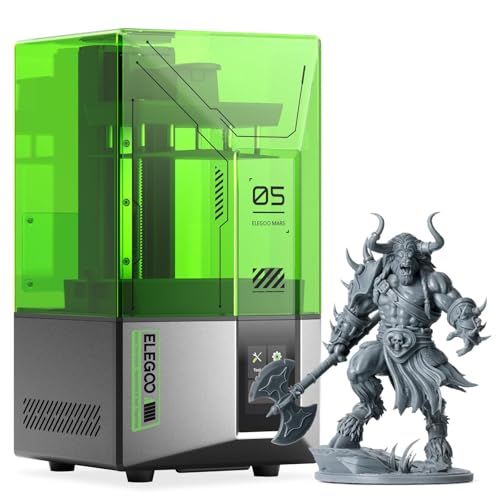
【Effortless Magic with One-Click Automatic Leveling】Effortless precision is just a click away. ELEGOO Mars 5 resin 3d printer offers advanced automatic leveling function with a simple click, allowing all skill levels to dive straight into the creative process. Say goodbye to tedious calibrations - simply unbox, power on, and print.
【High Strength & Crack Resistance】 With a Shore Hardness of 86D, Anycubic ABS-Like Resin 3.0 is extremely resilient against cracking, capable of withstanding drill operations without cracking or deformation.
Step-by-Step Test Plan to Find the Best AA Per Resin/Printer
Before you start, know why this matters: small AA changes change both surface smoothness and measured dimensions.
Here’s what actually happens when you set up a repeatable AA test plan for a resin/printer combo: you’ll discover how tiny tweaks affect edges and sizes. You prepare three calibration targets you can print and compare: half-spheres (10 mm diameter), stepped wedges (1 mm steps, 0–10 mm), and fine text (2 mm tall, 0.5 mm stroke). For example, print a 10 mm half-sphere to see how AA smooths the curve; a visible stair-step on that part shows underpowered AA.
Why you should print a baseline first: the baseline gives you the metric to beat. Print the three targets with AA off and record these values: measured diameter/height to 0.01 mm, visible layer lines (score 0–5), and any curing marks or edge ringing. For example, measure a 10 mm sphere with calipers and note 9.92 mm or 10.08 mm.
Think of AA tuning like tuning a camera lens: it affects blur and sharpness in predictable ways. Next, vary AA levels incrementally in a numbered sequence so you can track change. Use this sequence:
- AA 0 (baseline)
- AA 1
- AA 2
- AA 4
- AA 8
- AA 16
If your slicer supports decimals, try 0.5 and 2.5 between those. Print each step once, then measure.
Before you change blur, know why blur matters: blur changes how grayscale exposures mix at edges and impacts dimensional accuracy. Add blur in steps and keep AA level constant while doing so. For example, keep AA at 8 and test blur values 0, 1, 2, 4.
If you’ve ever had a slicer misinterpret a thin wall, edge detection tuning is the fix. Use edge detection where available and test two settings per AA level: edge detect on and edge detect off. Note whether thin text strokes fill in or disappear. For example, with 2 mm tall, 0.5 mm stroke text, mark whether strokes are legible.
Before you measure, know why consistent lighting matters: shadows hide surface detail and change perceived roughness. Photograph and inspect all prints under the same daylight-balanced lamp (5000 K) at fixed distance and angle. Use calipers for critical dimensions and a profilometer or 3D scan if you have one; otherwise use a 10× loupe and a surface roughness comparator card.
You need to document settings so you can reproduce results. Record resin name, mix time, temperature, printer model, layer height (e.g., 0.05 mm), exposure times, AA level, blur, edge detection setting, and print orientation. Save the slicer file and capture a photo of the printed part next to a ruler.
If a run looks promising, know why repetition matters: a single print can lie. Repeat promising settings three times and report the mean and standard deviation for critical dimensions. For example, measure sphere diameter across three prints: 9.98, 10.01, 10.00 mm — mean 9.997 mm, SD 0.015 mm.
You should end with a ranked summary of your favorite settings and a short note on trade-offs: smoother surfaces often shift dimensions by 0.02–0.1 mm, and higher AA with blur tends to soften fine text. Record your final recommendation as: best-for-smoothness (AA X, blur Y), best-for-accuracy (AA X, blur Y), best-for-detail (AA X, blur Y).
Recommended Products

Higher Heat-Resistance: The 3D printed models with ABS-Like 3.0 Plus maintains its physical shape and mechanical properties at higher temperatures (up to 55 celsius grad), which effectively reduces the risk of material failure due to high temperatures.

【PREMIUM CRAFTSMANSHIP】Our 3d printer tool kit is meticulously crafted to the highest standards. The majority of our 3d printer tools are expertly engineered from high-quality carbon steel, ensuring sharp blades, durability, and a comfortable grip. The remaining tools are constructed from hardened, acid-resistant, and anti-corrosion materials. Every single 3d print tool in our collection is a testament to quality and precision, making them the perfect choice for your construction projects.

【Premium Stainless Steel Funnel & Filters 】 Our durable 304 stainless steel funnel ensures smooth resin pouring with zero leaks. Includes 2 reusable metal filters to catch debris for clog-free prints + 10 disposable paper funnels for quick cleanup. The included brush keeps your funnel pristine. Bonus: Use the funnel for non-corrosive liquids like paints/varnishes to prevent nozzle clogs and ensure flawless finishes.
Compatibility: AA Behavior on ChiTuBox, Lychee, Mars, Photon, and More
Here’s what actually happens when you change anti-aliasing (AA) in your slicer: it alters both surface smoothness and dimensional accuracy, so choosing settings matters for the print result. Why this matters: a wrong AA setting can blur fine details or leave visible stair-stepping on curved surfaces.
ChiTuBox: use discrete AA levels like 2, 4, 8 because they’re simple to compare. Example: printing a 10 mm diameter threaded knob, try AA = 2, then 4, then 8 and measure the thread crests with calipers; you’ll see layer edge smoothing increase and measured diameter drift by ~0.05–0.2 mm as AA rises. Steps:
- Print the knob at AA = 2.
- Measure diameter and visual texture.
- Repeat for AA = 4 and 8.
Takeaway: pick the lowest AA that hides visible stair-stepping without changing critical dimensions more than your tolerance.
If you’ve ever used Lychee, this is why its AA feels different: Lychee blends AA with a blur filter, so edges soften more than in slicers that only do subpixel shifts. Real-world example: a small model of a character’s eye will look softer at the same AA number in Lychee than in ChiTuBox. Steps:
- Turn off extra blur in Lychee if you want crisper details.
- Set AA to match ChiTuBox visually (often a lower number).
- Print a detail test and compare under 10x magnification.
Takeaway: lower AA or disable blur when you need sharp fine details.
The difference between LCD smoothing and firmware grayscale comes down to hardware limits: many Mars and Photon printers naturally smooth edges via the LCD mask, but some controller boards only support limited grayscale, which reduces AA effectiveness. Example: a 5 mm pitch gear printed on a Photon Mono may look smooth, but on a cheaper board with 2-bit grayscale you’ll see banding and lost tooth definition. Steps:
- Check your printer board’s grayscale capability (look up your board model).
- If grayscale is limited, reduce AA or increase exposure to recover definition.
- Reprint and inspect gear engagement under load.
Takeaway: hardware sets the ceiling for how much AA can help.
Test each resin and printer combo because results vary by chemistry and lamp spectrum; a grey engineering resin can behave differently than a clear model resin under the same AA. Example: the same 0.5 mm embossed text on a calibration coupon printed in standard grey resin vs. high-detail resin will show different edge sharpness at identical AA. Steps:
- Choose one calibration coupon with text and curves.
- Print it on your printer with your resin at two AA settings.
- Photograph at 1:1 and measure critical features.
Takeaway: document settings and results so you can repeat successful combos.
Practical rule of thumb: start with AA = 2–4 on ChiTuBox or equivalent low setting in other slicers, print a 10–15 mm test piece with fine features, and measure critical dimensions; only increase AA if visible stair-stepping remains and dimensional drift stays within your tolerance.
Practical Trade-Offs: Print Time, Finish, and Post-Processing Impacts
If you’ve ever tried to balance print speed and finished look, this is why. You want faster prints, but you also want parts that need little sanding; those goals pull against each other.
Why this matters: choosing anti-aliasing (AA) changes how long your print takes and how much finishing you’ll do later. For example, printing a 50 mm curved phone stand at AA 8 vs AA 2 can add 20–40% to exposure calculations and tack on 15–30 minutes for a 2–3 hour print.
How AA affects the result
- Higher AA (more grayscale steps) smooths curves by reducing visible pixels. A 0.05 mm layer print at AA 8 will look noticeably smoother than AA 2 on a 15 mm radius curve.
- That smoothing increases slice calculation time and per-layer exposure time, which raises total print time. Expect roughly 10–30% slower prints depending on resin and model complexity.
- Smoother surfaces usually need less sanding, but they can mask tiny edges. If you print a hinge pin that must be 2.00 mm, higher AA might hide the crisp edge you rely on.
Example: I printed a small eyeglass hinge (12 mm long) at AA 6; it looked great but the mating slot needed an extra 0.05 mm clearance to move freely.
Practical steps to test and tune (do this before a big run)
- Print a calibration set with one flat, one 10 mm radius curve, and one tab that fits a 2 mm hole. Use the same resin and 0.05 mm layer height.
- Run that set at AA 2, AA 4, and AA 8. Time each print and note exposure calculation time plus total print time.
- Inspect finishes under 10x magnification and check the tab fit. Record whether you needed sanding or added clearance.
Post-processing and wear
Why this matters: post-cure changes hardness and dimensions, which affects final fit and surface fatigue from repeated contact. For example, a printed gear post-cured 30 minutes at 60°C may shrink 0.1–0.2% versus a 15-minute cure.
Steps for consistent post-cure
- Standardize cure time and temperature per resin (write it down). Example: 20 minutes at 60°C for Resin A.
- Use the same fixture orientation each time to reduce dimensional drift.
- Test-wear a contact surface by cycling it 1,000 times and inspect for wear under 10x.
A practical compromise
Why this matters: you don’t want to waste time or ruin fits. If you need smooth visible curves but also tight fit tolerances, use mixed settings and small design tweaks.
Steps to balance speed and precision
- Use higher AA for aesthetic surfaces and lower AA for functional mating faces.
- Add 0.05–0.1 mm clearance to critical fits when printing with higher AA.
- Run a single test print with these mixed settings to confirm.
Final checklist before production
- Print a three-piece test at chosen AA levels.
- Time the print and measure key dimensions to 0.01 mm if possible.
- Set and log post-cure time/temperature.
- Adjust design clearances by 0.05 mm if you saw edge softening.
Do the tests once per resin and AA level, write down the numbers, and you’ll hit the right balance between speed, finish, and durability.
Frequently Asked Questions
Can AA Settings Affect Resin Burnout for Jewelry Casting?
Yes — I’ve found AA can change surface density and catalyst residue patterns, which subtly affect burnout chemistry; smoother AA prints reduce trapped residues but might hide flaws, so I test settings per resin to avoid casting issues.
Does AA Influence Adhesion and Support Placement Requirements?
Yes — I’ve found AA mainly affects surface finish, not layer adhesion, but it can change support density needs slightly because smoother edges may need fewer supports; I’d still test supports per resin and geometry.
Can AA Interact With Color/Translucency of Resin Prints?
Yes — I’ve seen AA cause subtle color shifts and translucency variation; smoothing changes light scattering and edge density, so translucent or colored resins can look slightly different with higher AA levels, especially under thin or glossy areas.
Do Firmware or Projector Upgrades Change AA Effectiveness?
Want smoother AA results from hardware tweaks? I think firmware updates can tweak exposure timing and grayscale handling, and projector calibration alters optical sharpness—both change AA effectiveness, so test after Firmware updates and Projector calibration.
Will AA Increase Long-Term Wear on LCD Panels?
No, I don’t think AA meaningfully shortens panel longevity; I’ve seen negligible pixel degradation from grayscale blending, though higher AA increases exposure cycles slightly, so occasional monitoring for wear is still wise over time.