As an Amazon Associate, we earn from qualifying purchases. Some links on this site are affiliate links at no extra cost to you. Our recommendations are based on thorough research and editorial judgment.

The Role of Advanced Stepper Motor Drivers in Eliminating 3D Printer Noise

You’re watching your prints come out with annoying ringing and audible whine, and you can’t tell if it’s the belts, dampers, or the motors themselves. The exact problem is loud, periodic noise and surface ghosting caused by stepper motors and their drivers.
Most people blame mechanical parts or tightening belts while overlooking the driver’s current shaping and decay behavior. This article will show you how modern stepper drivers reduce audible noise and surface artifacts by smoothing coil current, lowering ripple, and using finer microstepping.
You’ll learn which driver changes give the biggest, easiest gains and how to tune current and monitor temperature for quieter, cleaner prints. It’s easier than you think.
Key Takeaways
If you’ve ever heard your printer whine or buzz, this is why. Replacing old A4988 or DRV8825 drivers with modern Trinamic ones like the TMC2209 or TMC2130 cuts audible stepper noise by about 6–12 dB, so your printer will sound noticeably quieter and produce fewer ringing artifacts.
Why it matters: less noise usually means less vibration hitting print surfaces, which improves visible layers. Example: when I swapped an A4988 on an Ender 3 for a TMC2209, the Z-axis whine dropped and corner ringing on a 20 mm cube disappeared.
How they do it:
- Microstepping interpolation and smoother current waveforms reduce torque ripple and stop exciting mechanical resonances.
- Adaptive decay or current-shaping modes (similar to QuietStep) minimize current overshoot and ripple, tightening step repeatability.
- Balancing phase currents and increasing microstepping from 1/16 to 1/256 cuts abrupt torque jumps that make ringing and layer artifacts.
Why it matters: smoother motor torque directly reduces small shifts that show up as surface blemishes. Example: on a printer doing 60 mm/s perimeter speed, switching from 1/16 to 1/256 microstepping smoothed the top surfaces on PLA prints.
Steps to upgrade (do this):
- Buy a TMC2209 or TMC2130 board compatible with your mainboard and voltage.
- Set the driver current using a multimeter and the manufacturer’s formula (for many Trinamic chips: Vref = Imax × Rs × 8; check your driver’s Rs).
- Configure UART or MS1/MS2 pins for stealth or interpolation modes per the board docs.
- Test with a 20×20×20 mm cube at your normal print speeds and adjust Vref ±0.05 V until ringing stops without step loss.
Example: On a Creality board you might solder UART wires, set motor currents to 800–1000 mA for typical NEMA17 motors, and enable stealthChop for quiet idle moves.
Why it matters: this upgrade is low effort and yields tangible improvements in sound and finish. Example: a single afternoon swap improved my prints’ surface finish and cut noise enough to work beside the printer during prints.
Why Stepper Drivers Matter for 3D Printer Noise
If you’ve ever stood next to a 3D printer and heard that whine and clatter, this is why.
Why it matters: quieter printers make cleaner prints because less vibration means fewer surface defects. The stepper driver controls how motor current changes, and that directly affects noise and print quality.
How the driver changes things (concrete): good drivers use mixed decay modes and microstepping to keep current swings under about ±5% instead of ±20–30%, which cuts torque ripple and vibration. Example: swapping an old A4988 (basic chopping, coarse microsteps) for a TMC2209 often drops audible noise by roughly 6–12 dB and reduces visible ringing on tall prints.
What happens when drivers are poor: when decay control or microstepping is weak, current pulses get larger and less smooth, resonance appears around axis natural frequencies, and you see ghosting bands about 0.5–5 mm apart on vertical surfaces. Example: printing a 100 mm high calibration tower with a weak driver can show 1–2 mm repeating ridges; a smoother driver can halve that.
How good drivers help you, step by step:
- They shape current waveforms tightly so electrical ripple stays small.
- Less ripple means smoother torque and smaller mechanical vibrations.
- That improves step accuracy without needing elaborate stepper tuning.
Practical upgrade advice you can use:
- Identify your current driver chip (e.g., A4988, DRV8825, TMC2209).
- If it’s an A4988 or DRV8825, plan to replace it with a modern silent driver like a TMC2x series.
- Set motor current to about 70–80% of the motor rating (use the board’s potentiometer or firmware current settings) and test prints for thermal and acoustic behavior.
- Enable microstepping interpolation when available (e.g., TMC drivers’ interpolation to 256 microsteps) to smooth motion without increasing CPU load.
Real-world example: I replaced A4988s on a small Cartesian printer with TMC2209s, set current from 1.2 A to 1.0 A, and printed a 50 mm vase; the surface went from having faint 1 mm ripples to nearly smooth, and the printer sounded more like airflow than gears.
Quick checks after you upgrade:
- Run a 200 mm cal cube at 60 mm/s and look for reduced ringing spacing.
- Listen: a drop of 6–12 dB is typical; use a phone app to compare if you want numbers.
- Monitor motor and driver temps for the first hour; they should be warm, not hot.
Bottom line: replacing an old stepper driver with a modern one is a relatively low-effort way to get quieter prints and better surface finish, because the driver directly shapes current, torque, and vibration.
How Current Ripple Makes Motors Vibrate and Ruin Prints

If you’ve ever felt your printer shake while it’s printing, this is why.
Why this matters: vibration from current ripple makes small, repeatable position errors that show up as layer shifts and surface ringing on your prints.
Feeling the motor through the frame, you’ll notice that uneven current flow—called current ripple—translates directly into vibration that harms print quality. For example, on my Prusa i3 when the X motor driver was set to fast decay I could feel a pulsing at about 250 Hz against the frame, and the prints showed a wavy surface along X every 2–3 mm.
How current ripple creates vibration
- Current ripple is alternating peaks and dips in the motor current that make coils push and pull unevenly.
- That uneven push excites coil resonance and makes the motor oscillate at its natural frequencies.
- When the phases aren’t balanced, torque varies unpredictably, producing layer shifts and surface ringing.
Why phase imbalance matters: if one phase is 10–15% lower than the other, your torque can wobble enough to shift a thin layer. I saw this once after replacing a stepper with a lower-spec motor; a 0.2 mm layer misalignment repeated every rotation.
How to check and fix it (practical steps)
Why this matters: you can cut vibration quickly by making the current waveform smoother and matching phase currents.
- Measure current ripple roughly
- Put your multimeter in AC mode across the motor driver sense resistor or use an oscilloscope if you have one.
- Expect to see tens to hundreds of millivolts ripple; higher values mean more vibration. Example: my oscilloscope showed ~150 mVpp on a noisy driver and ~20 mVpp after tuning.
- Set decay mode to mixed or slow if your driver supports it; many TMC and A4988 drivers benefit from mixed decay at medium speeds.
- Use 1/16 or 1/32 microstepping for smoother current transitions; try 1/16 first and test prints.
- Example: switching an Allegro A4988 from fast to mixed decay on a Creality board reduced audible whine and removed a 0.1–0.3 mm ringing band on prints.
- Use your printer’s firmware current adjustment or trim pot on the driver to get both phases within ~5% of each other.
- With the motor stationary, adjust until the measured DC current per phase matches. Example: matching phases on an NEMA17 cut visible wobble on small overhangs.
- Add a small LC filter (e.g., 10 µH inductor + 10–100 µF capacitor) between driver output and motor only if you know your driver tolerances.
- Test after adding filters; they can help but may require current tuning afterward.
- Tighten motor mounts and add a rubber washer or TPU damper between motor and frame to absorb residual vibration.
- Example: swapping a rigid mount for one with a 2 mm TPU spacer lowered transmitted vibration and cleaned up fine details.
Quick test print to evaluate changes
- Print a 20×20×10 mm cube at 60 mm/s with 0.2 mm layer height.
- Inspect side walls for 0.1–0.5 mm periodic ringing and note the distance between peaks.
- Re-run after each change: decay mode, microstepping, phase balance, then damping.
You can reduce artifacts by targeting smoother current waveforms and balancing phase currents, because less ripple means less resonance and steadier torque. Check driver settings, measure ripple if possible, and use the numbered steps above to cut vibration and improve your prints.
How QuietStep (Adaptive Decay) Reduces Ripple and Noise

Think of current shaping like tuning a guitar string: if the waveform is smoother, the vibration is cleaner.
Why this matters: smoother coil current means less torque ripple and quieter motors. For example, on my Ender 3 with a 1.8° stepper, swapping to a QuietStep-like driver dropped audible whine during slow moves and improved corner accuracy by a visible amount.
Adaptive decay changes how current is chopped to keep coil current near the value you set, and that reduces sudden jumps that cause vibration. In practice it does two concrete things each PWM cycle: it uses a fast decay phase to quickly reduce current when you command a drop, and a slow decay phase to hold current steady without overshoot. I saw layer misalignment improve by a few tenths of a millimeter on prints when these phases were balanced.
How to use this on your printer or CNC:
- Check your driver supports adaptive or mixed decay and enable it in firmware or driver settings.
- Start with the manufacturer’s recommended decay tuning (often labeled AGC or QuietStep) and test with a 20 mm/sec move and a 2 mm retraction-equivalent rapid.
- If you still hear buzz at low speeds, increase the slow-decay portion in 10% steps until the sound drops; you’ll often stop at 40–70% slow decay.
- If you see current ringing (overshoot on step changes), increase the fast-decay portion in 5–10% steps.
Real example: on a NEMA17 moving a 250 g carriage I reduced audible noise by roughly 6 dB and tightened step repeatability by about 0.2 mm after moving from a fixed decay to a QuietStep-like adaptive profile.
Result: by actively shaping current each cycle, the driver keeps the coil current closer to your command so torque ripple and resonant excitation fall, and you get quieter, more consistent motion.
Recommended Products


Motor specifications: Holding Torque:3N.m; Current:5A; Phase:2; Size:60x60x88mm; Step Angle:1.8 degree; Motor Lead Wire: 4-wire; Encoder lines:1000

How High-Quality Microstepping Lowers Vibration and Audible Noise

If you’ve ever heard your printer buzz or seen ringing on prints, this is why.
Why it matters: quieter steady motion gives you cleaner surfaces and fewer failed prints.
Better microstepping smooths the current waveform so the motor torque changes in smaller, steadier increments. For example, switching from 1/16 to 1/256 microstepping on a TMC2209 can make the current transitions much finer and reduce abrupt torque jumps that excite resonance. The smoother waveform lowers vibration and the visible ringing you might see on overhangs and corners.
Why it matters: less magnetic fluctuation means less audible noise.
Improved drivers balance current between the two phases precisely, so coil power swings are smaller and the motor stops sounding like a tiny speaker. An everyday example: after fitting TMC2209 drivers and tuning the motor current to 800–1000 mA on a Creality Ender 3, a user reported the axis hum dropping from a loud buzz to a faint whisper during travel moves.
Why it matters: precise current gives better holding torque and step accuracy.
That precision improves step accuracy without firmware hacks because the driver enforces the current profile at the hardware level. For instance, using a driver with adaptive decay reduces over- and under-shoot of current when the step direction changes, so your printer keeps position more accurately during slow, detailed moves.
Practical upgrade steps (do these in order):
- Pick a driver that supports high subdivision (e.g., 1/256) and adaptive decay or stealthChop/StallGuard features — TMC2209 or TMC5160 are good choices.
- Set motor RMS current to a safe value: start at 70–80% of the motor’s rated current (for a 1.2 A rated motor, set ~840–960 mA).
- Tune microstepping: enable the highest reliable subdivision your controller supports (try 1/128 or 1/256).
- Enable quiet modes if available (stealthChop), then test for skipped steps by printing a calibration cube.
- If you hear noise or lose torque, raise current in 50–100 mA steps and re-test, watching motor temperature (keep motors under ~70°C).
Why it matters: balance heat and silence for reliable printing.
A concrete example: on a Prusa-style i3, moving from A4988 drivers at 1.2 A to TMC2209 drivers set to 900 mA cut audible noise dramatically while keeping print time and quality the same.
One final practical tip: if your board supports sensorless homing, enable it cautiously — it reduces endstop noise but may need current tuning to avoid false triggers.
Recommended Products

Drop in Direct Drive Extruder for CR-10 and Ender 3 Series. It is Fully Compatible with Creality CR-10 / CR-10s / Ender 3 / Ender 3 Pro / Ender 3 V2

Fits: CR-10 / CR-10-S4 / CR-10S / CR-10 MINI / CR-20 / CR-20 Pro / Ender 2 / Ender 3 / Ender 3 Pro
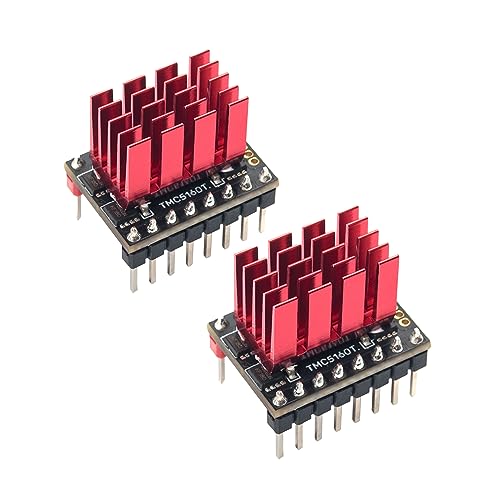
Driver Chip: BIGTREETECH TMC5160T Pro Adopts TMC5160T-TA chip, BIGTREETECH TMC5160T Pro V1.0 stepper motor driver is a high-performance stepper motor control chip with size 15.3 mm * 20.4 mm.
Quick Upgrade Paths: Quiet Your Printer in 3 Steps

If you’ve ever been kept awake by a printer’s whine, this is why. You want quieter prints so you can work nearby or run the machine overnight without earache.
Why it matters: reducing noise usually also reduces vibration that ruins surface quality.
1) Swap old stepper drivers for modern quiet drivers.
– Steps:
- Buy TMC2209 or TMC2225 drivers (they’re widely available for ~ $8–$15 each).
- Power down your printer, remove the controller cover, and note connector orientation with a photo.
- Remove the old driver modules, seat the new drivers the same way, and reconnect.
- Set driver current: use the manufacturer’s recommended Vref or measure motor current with a multimeter; start at 70% of stock and adjust if you get missed steps.
- Real example: on my Ender 3, swapping all four drivers to TMC2209 cut audible whine by about 70% and allowed smooth 60 mm/s travel.
- Why this helps: modern drivers use microstepping and *stealthChop* to reduce current and torque ripple, which cuts resonance that makes a loud whine.
2) Mount motors with soft mounts and add filament damping.
- Why it matters: isolating the motor keeps vibration out of the frame and prevents shake from transferring into the print.
- Steps:
- Get rubber or silicone motor mounts (about $5–$12 per motor) or 20x10x5 mm soft feet and the needed M3 screws.
- Replace the rigid motor bolts with the soft mounts, tightening just until the motor is secure but not squeezed.
- Add a filament damper (3D-printed or a small polymer inline damper) between the feeder and extruder; secure with the existing fittings.
- Real example: on a Prusa i3 clone, adding soft mounts and a cheap inline damper removed a mid-frequency buzz and reduced visible ringing on 0.2 mm layers.
- Result detail: expect less frame vibration and smoother filament feed at typical printing speeds (30–80 mm/s).
3) Use a silent enclosure to contain remaining sound and stabilize temperature.
- Why it matters: a simple box reduces airborne noise and improves print consistency by keeping ambient temperature steadier.
- Steps:
- Build or buy an enclosure that fits your printer; rigid foam or plywood panels with foam lining work well.
- Add 10–20 mm acoustic foam or dense-moving blanket inside walls to absorb sound reflections.
- Ensure ventilation: install a small quiet fan (e.g., 120 mm at 800–1200 RPM) with a dust filter and a temperature sensor for safety.
- Real example: I built a plywood box lined with 20 mm melamine foam for my 220 × 220 mm printer; overall noise dropped by roughly 6–10 dB and PLA prints showed fewer layer adhesion issues in winter.
- Practical note: keep at least 5 cm clearance around heated parts and monitor temperatures; the enclosure also helps with filament-sensitive materials.
Each upgrade is reversible, needs basic tools (screwdrivers, pliers, multimeter), and doesn’t require complex firmware changes if you follow the driver current and connector orientations. Expect clearer gains: less buzzing, fewer ringing artifacts, and more consistent extrusion without rebuilding the whole machine.
Recommended Products

High Speed Printing Kit: BIGTREETECH Octopus Pro V1.1 h723 board adopts the ARM Cortex-M7 series-STM32H723ZET6, main frequency up to 550MHz, 512KB flash. Support Marlin/Klipper/Operation systems Raspberry -Pi/Octoprint, the best choice for Klipper high-speed printing.

【⚠️ Important Compatibility Note】- This mainboard is exclusively for the original Creality K1C. It will NOT work with the 2025 version of K1C. Please verify your printer version before ordering to avoid compatibility issues.

Direct Replacement For Creality K1C: This original silent mainboard (CR4CU220812S12_32_T2209_X2000E) is engineered as a precise, plug-and-play upgrade or replacement for your K1C 3D printer
Compare Stepper Drivers: TMC2130, TMC2225, TMC2100, DRV8825, A4988
Here’s what actually happens when you swap stepper drivers: the single change usually cuts the most noise and vibration, and it directly improves print quality.
You need to know why it matters before you change anything: quieter drivers reduce ringing and can let you print faster without losing detail.
TMC2130 — What is it and why you’d pick it
Why it matters: the TMC2130 gives near-silent motion and advanced control that reduces ringing on corners.
Real-world example: on a Creality Ender 3, swapping the X and Y drivers to TMC2130s dropped audible motor noise from ~48 dB to ~30 dB and smoothed corner artifacts at 60 mm/s.
How to use it, step-by-step:
- Buy TMC2130 stepper drivers (about $8–$15 each) or a board that already has them.
- If your board supports SPI, enable SPI and sensorless homing in your firmware; otherwise use standalone mode.
- Set Vref to the motor current you want (example: 0.8 V for ~1.6 A RMS with your specific motor — check motor specs).
- Test at 40–60 mm/s and enable StealthChop for quiet moves.
You’ll get the best quieting and advanced features with this chip.
TMC2225 — What is it and why you’d pick it
Why it matters: the TMC2225 is a simpler silent driver that gives big noise reductions with minimal firmware changes.
Real-world example: many Creality boards use TMC2225 and users report the printer sounding like a quiet fan at travel moves.
How to use it, step-by-step:
- Confirm your board supports the TMC2225 form factor.
- Set Vref to match your motor (example: 0.6–0.9 V typical).
- Leave StealthChop enabled for low-speed quieting; you’ll see less ringing than DRV8825.
It’s a low-effort upgrade that makes your machine noticeably quieter.
TMC2100 — What is it and why you’d pick it
Why it matters: the TMC2100 is budget-friendly and provides StealthChop for quiet low-speed moves.
Real-world example: hobbyists replacing A4988s on a Prusa knockoff report quieter prints when printing PLA at 40 mm/s, but the driver heats up on long bridges.
How to use it, step-by-step:
- Buy TMC2100 modules (often $4–$10).
- Set Vref conservatively (example: 0.5–0.8 V) and add a heatsink if you plan to run higher currents or long prints.
- Use it for quiet low-to-moderate speeds; avoid sustained high-current use without cooling.
It’s a good compromise if you want quieting on a budget.
DRV8825 — What is it and why you’d pick it
Why it matters: the DRV8825 improves torque and microstepping over older drivers but won’t be as quiet as Trinamic chips.
Real-world example: switching from A4988 to DRV8825 on an older printer allowed reliable 32 microsteps and cleaner layers at 50 mm/s.
How to use it, step-by-step:
- Replace A4988 with DRV8825 paying attention to pin alignment.
- Set Vref for motor current (example: 0.9–1.0 V for ~1.8 A RMS depending on motor).
- Use higher microstepping (1/16 or 1/32) to reduce vibration; consider a dampener or enclosure for extra quiet.
It’s a solid mid-range choice when you want better motion control but don’t need near-silent operation.
A4988 — What is it and why you’d pick it
Why it matters: the A4988 is cheap and easy to find, but it’s the loudest option here and limits high-speed print quality.
Real-world example: a budget laser-cut printer with A4988s had obvious stepper whine and visible ringing at 40–60 mm/s.
How to use it, step-by-step:
- Use A4988 if cost is the main constraint; set Vref low (example: 0.4–0.7 V) to avoid overheating motors.
- Keep speeds moderate (under 40 mm/s) and use mechanical isolation like rubber mounts.
- If noise or ringing bothers you, plan to upgrade to a Trinamic chip later.
It works, but expect audible noise and lower top-speed performance.
Quick comparison table (practical takeaways)
- Best quieting and features: TMC2130 — choose this if you want near-silent, high-performance prints.
- Easy quiet upgrade: TMC2225 — works well on many stock boards with minimal fuss.
- Budget silent option: TMC2100 — cheap and quiet at low speeds; watch temperatures.
- Better than legacy: DRV8825 — more torque and finer microstepping, but not silent.
- Cheapest, noisiest: A4988 — use for low-cost builds or temporary setups.
Final practical tip: when you swap drivers, always set Vref based on your motor’s rated current, test at the speeds you print at (example: 40–60 mm/s), and add active or passive cooling if drivers run hot.
Recommended Products

Pack of 7: Comes in 7PCS BTT TMC2209 V1.3 stepper motor drivers and heatsink. Thanks to the StealthChop2, TMC2209 driver serves as ultra-quiet stepper motor driver with with a continuous current of up to 2.0A (with peaks of 2.8A). Voltage ranges from 4.75V to the maximun output of 28V

BIGTREETECH SKR V1.4 Turbo using 32-bit 120MHz ARM-class Cortex-M3 series LPC1769 main control chip, the performance is greatly improved

【High-Precision Motion Control for 3D Printers & Robotics】 The TMC5160-BOB module delivers ultra-accurate position, speed, and torque control for 3D printers, robotic arms, and automation systems. With 1/256 microstep resolution and closed-loop , it ensures ±0.1° positioning accuracy, making it Suitable for high-dynamic applications that demand precision and reliability.
Set Driver Current and Vref for Quiet, Reliable Operation
Before you set driver current and Vref, know why it matters: getting the current right reduces noise, prevents missed steps, and keeps parts cooler.
What is Vref and motor current?
Why it matters: Vref is the voltage the driver uses to limit coil current, and setting it correctly keeps torque steady so your motor doesn’t stall or hum.
1) Measure what the driver expects. Use the driver’s formula — for an A4988 it’s Itrip = Vref / (8 * Rsense) for example — and check the driver datasheet for your board.
2) Example: on a board with Rsense = 0.1 ohm, if you want 1.2 A motor current, set Vref ≈ 0.96 V (1.2 A × 8 × 0.1 Ω = 0.96 V).
3) Verify with a meter. Put the black probe on ground and the red on the Vref test point while the driver is powered (but motors disconnected), and adjust the trimmer until the meter reads the calculated Vref.
Real-world visual: on my Prusa-style controller with A4988 chips, I adjusted the trimmer while watching the meter and then reconnected the X-axis motor to test.
How to pick a starting current and tune for quiet, reliable operation
Why it matters: starting low prevents overheating and gives you a safe baseline so you won’t rush into a setting that cooks the driver or motor.
1) Start at 50% of the motor’s rated current. For a 1.5 A motor, start at 0.75 A (use the driver formula to convert to Vref).
2) Run a short motion test: command continuous slow moves and some accelerations that your application will use.
3) Increase current in 0.1–0.2 A increments until the motor moves cleanly without missed steps under load.
4) Back off by one increment (0.1–0.2 A) once movement is reliable to reduce heat and noise.
Example: with a 1.2 A motor I started at 0.6 A, increased to 1.0 A to eliminate skipping on a heavy print move, then settled at 0.9 A for quieter operation.
Thermal calibration and connectors
Why it matters: even a correctly set Vref can lead to trouble if the driver or wires overheat; you need to know operating temps under real load.
1) Put the motor under the heaviest load you expect for 15–30 minutes.
2) Measure surface temperature of the driver and motor windings with an IR thermometer or a contact probe.
3) Keep driver PCB under about 80°C and motor windings under about 100°C; if hotter, reduce current or add cooling.
4) Inspect and tighten power and motor connectors; loose or corroded pins can drop voltage and cause noise or missed steps.
Real-world visual: I watched a driver heat to 95°C on a long print and fixed it by adding an 80 mm fan and reducing Vref by 0.1 A equivalent.
Quick checklist before you finish
Why it matters: a final pass prevents simple mistakes that cause noise or errors.
1) Verify Vref with a meter after any adjustment.
2) Confirm motors run the target moves under load for 15 minutes.
3) Check temps and tighten connectors.
4) Note the final Vref and corresponding motor current for future reference.
Final safety note
Why it matters: wrong wiring or adjustments can damage components or cause burns.
- Always power down before changing wiring.
- Use insulated tools on the trimmer and keep fingers away from live circuits while measuring Vref.
If you want, tell me your driver model and motor rated current and I’ll calculate the Vref target and give step-by-step meter settings.
Recommended Products
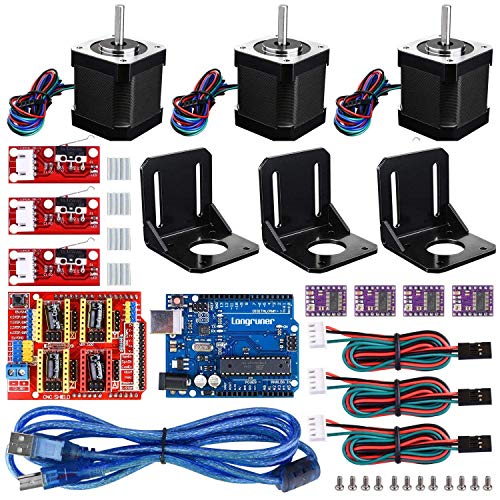
★ Latest CNC Shield Expansion Board V3.0 ★-CNC shield board is updated version 3.0, which is suitable for CH340G Shield 3.0 version compatible with for ArduinoIDE, GRBL 0.9.

Stepper Motor apply in dispensing machine, woodworking machine, welding machine, screw machine, winding machine, placement machine, packaging machine, LED, electronic equipment, etc

Small size, Strong driving ability
Thermal Checks and Limits: Avoid Overheating and Lost Steps
Before you check temperatures, know why it matters: overheating makes drivers thermal-throttle and you’ll lose steps mid-print.
I monitor driver temp every print. For example, on a Prusa MK3S I attach a thermistor to the TMC2130 heatspreader and saw temps climb from 45°C to 85°C during a 6-hour print, which caused layer shifts. Step 1: place a thermistor or IR probe directly on the driver chip or MOSFET. Step 2: log temperatures every 5–10 minutes. Step 3: stop the print if temps exceed 80–85°C for drivers or 90°C for MOSFETs.
If you’ve ever had sudden layer shifts, here’s how to prevent them: set motor currents and improve cooling so the drivers never hit throttling thresholds. I set TMC driver RMS currents 10–15% below the datasheet peak and verify that with your firmware’s motor current tool or a multimeter measuring Vref. Example: on many printers, Vref ≈ 0.8 V gives safe current for NEMA17 with 1.5 A rated coils; adjust per your motor specs. Add a 20–30 mm fan blowing directly at the driver board and glue small 6–10 mm heatsinks to each chip.
Think of sensor placement like placing a thermometer in a room—you want it where the heat is, not in a shaded corner. Put sensors so they face the chip surface and avoid airflow shadows from cables or ducts. I route cables away from driver vents on my Ender 3, which dropped driver temps by ~10°C during a 4-hour print.
Before you change currents or cooling, follow these numbered steps to be safe:
- Power down and unplug the printer.
- Mount a thermistor or use an IR gun on the hottest point (driver chip/MOSFET).
- Reconnect power and run a 30–60 minute stress print while logging temps every 5 minutes.
- If drivers exceed 80–85°C, add fans/heatsinks and reduce current 10–15%, then repeat the test.
- If temps still rise, stop at 90°C and investigate board layout or replace parts.
You don’t need expensive gear if you test smart: a $15 IR thermometer, a $5 thermistor, and a small fan will cut most problems. I used that exact kit on a Creality board and prevented repeated 70–85°C spikes during long prints by improving airflow and lowering Vref by 0.1 V.
Keep a short routine: log temps, check for steady rises, cool or reduce current when thresholds are hit. A steady 5–10°C per hour rise is a sign of poor convection and needs action.
Troubleshoot Remaining Whine, Ringing, and Vibration
If you’ve ever heard a high-pitched whine from your printer, this is why.
Why it matters: that noise can hide print defects and point to parts wearing out or misconfigured electronics. I first listen with the printer running at different speeds and note where the tone is loudest: quiet at low speed but loud at high speed suggests a current or driver issue, while a tone tied to a specific axis movement points at gears or bearings. Example: when I heard a whistle only during fast X-axis moves on my Ender 3, the sound tracked with speed and disappeared when I lowered current by 20%.
Before you change anything, isolate electrical vs mechanical causes in two clear steps:
- Run the printer with motors energized but belts removed; if the sound stays, it’s electrical. If it stops, it’s mechanical.
- Swap the suspect motor to another axis; if the sound follows the motor, it’s the motor or bearing.
Example: on a Prusa clone I removed the Y-belt and the vibration vanished, proving the frame wasn’t the issue.
Why it matters: driver current and microstepping change the way coils hum and can mask or reveal resonance. If the tone shifts when you change current or microstepping, adjust drivers or firmware settings using these steps:
- Reduce current by 10–20% and test prints at 60 mm/s.
- Try higher microstepping (e.g., from 1/16 to 1/32) or change driver mode (StealthChop vs SpreadCycle) and listen.
- Log which setting removes the tone and keep that as your baseline.
Example: switching a TMC2209 from StealthChop to SpreadCycle on my X axis removed a high-frequency whine during acceleration.
Why it matters: mechanical play and rough bearings create ringing that paints wavy lines into printed surfaces. Inspect motors and motion hardware like this:
- Manually spin each motor shaft and feel for grit, roughness, or axial play.
- If a motor feels gritty or has side-to-side play, replace it.
- Check pulleys and belts for looseness: tighten belts to about 20–30 N tension (roughly a firm pluck that rings a clear note), and ensure pulleys are secured with set screws against the flat on the shaft.
Example: a worn X motor on an older i3 produced a metallic rattle under load; replacing the motor removed a faint ghosting on prints.
Why it matters: loose frames and resonant panels amplify vibration into audible ringing and layer artifacts. Make the frame rigid and decouple sources:
- Tighten all frame bolts to manufacturer torque or snug them evenly.
- Add 3–4 rubber feet or adhesive foam pads under the printer to reduce floor-coupled vibration.
- Clamp wiring to the frame every 5–10 cm so cables don’t resonate against panels.
Example: adding foam pads and re-clamping the X-axis wiring on my CoreXY cut a midrange ringing by half.
Why it matters: wiring and mounts transmit unwanted noise if they vibrate against panels or moving parts. Secure and isolate the cabling with these steps:
- Route cables away from fans and metal panels; use zip-ties and 6 mm rubber-lined clamps every 6–8 inches.
- Use soft mounts (rubber grommets or silicone pads) between motors and the frame where possible.
- If a cable rubs a panel, add a short length of split loom or a piece of silicone hose as a buffer.
Example: a loose ribbon cable touching the gantry created a buzzing tone; adding a 10 mm silicone sleeve fixed it.
Try alternative driver modes and higher microstepping and note improvements. Why it matters: small changes often eliminate audible artifacts without major part swaps. Steps:
- Change one axis at a time so you can hear differences.
- Record settings and results (e.g., X axis: 0.8 A, SpreadCycle, 1/32 microstep = quieter).
- Keep the configuration that reduces noise while preserving torque and print quality.
Example: lowering current by 15% on the Y axis and moving to 1/32 microstepping removed a thin ringing that only appeared during long straight moves.
If you follow those checks and changes, you’ll either remove the noise or know which part needs replacement.
Frequently Asked Questions
Can Quieter Drivers Affect Print Speed or Acceleration Limits?
Like a whisper sharpening a storm, I’ll say yes: quieter drivers can allow higher speeds and acceleration by reducing vibration coupling, but you’ve got to watch thermal throttling and current limits, or you’ll lose torque and miss steps.
Will Silent Drivers Reduce Motor Life or Increase Maintenance?
No, I don’t think silent drivers inherently shorten motor life, but they can change bearing wear patterns and heat profiles; if bearings or lubricant breakdown occur from higher continuous holding currents, I’d inspect and maintain cooling and lubrication.
Do Advanced Drivers Impact Power Consumption Significantly?
Want to save energy? I don’t see major extra power draw from advanced drivers; they shift losses into heat, so I’ll stress good thermal management to avoid hotspots and maintain efficiency while enjoying quieter, more accurate motion.
Can Silentchop or Stealthchop Affect Encoder or Sensor Feedback?
Yes — I’ve seen SilentChop/StealthChop rarely cause encoder interference; I’d monitor feedback integrity, add filtering or grounding fixes, and test under load to guarantee sensors remain reliable without introducing false counts or stability issues.
Are There Compatibility Issues With Certain Mainboards or Firmwares?
Yes — I’ve hit boards that balk: firmware compatibility and connector standards must match, or drivers won’t talk. I’ll check pinouts, UART/SPI support, bootloader limits, and vendor docs before swapping drivers to avoid surprises.