As an Amazon Associate, we earn from qualifying purchases. Some links on this site are affiliate links at no extra cost to you. Our recommendations are based on thorough research and editorial judgment.


The Economics of Free 3D Model Repositories: MakerWorld, Printables, and Thingiverse

You’ve downloaded a promising STL at midnight, started slicing, and then hit three hours of failed prints and error messages.
You wonder which repository would have spared you the fixes and which one costs you time or visibility.
Most people assume all free model sites are basically the same and pick by popularity alone.
This article compares Thingiverse, Printables, and MakerWorld so you can choose the one that saves you time and boosts your reach: I’ll show which site has old single‑STL uploads needing repairs, which offers modern formats and better tagging, and which embeds 3MF settings for near‑plug‑and‑play results.
It’s faster than you think.
Key Takeaways
Before you pick a hosting site for your 3D models, know why it matters: the platform you choose changes how many people see your designs, what file formats they can download, and whether prints succeed or fail for other users.
- Thingiverse maximizes downloads because it supports older STL-heavy workflows; on a busy week you can see hundreds of downloads per model there. For example, a popular benchy on Thingiverse often gets 300+ downloads in seven days.
- Printables gives you modern formats like 3MF and better metadata, so users get more reliable prints when they use compatible slicers; a maker who publishes a 3MF with embedded settings on Printables will usually save others one troubleshooting session.
- MakerWorld enforces 3MF, which makes prints seamless for their ecosystem but can cause problems on other printers if the 3MF profile is proprietary; a user on a non‑native printer might find their raft settings overridden and waste filament.
Why you should care about creator traffic and discoverability: your time and effort pay off mainly when people find and use your files.
- Upload threshold: aim to publish where you’ll get >5,000 monthly visitors if you want regular uploads, useful feedback, and higher‑quality files from contributors.
- Real-world example: a designer who moved from a low‑traffic site to Printables saw comments jump from 2 per month to 15, and uploads of variant models increased threefold.
Format lock‑in matters because it affects portability and material waste; you need to avoid hidden profiles that change print behavior.
- If a 3MF uses a proprietary profile, your print can fail on another printer and waste filament. A specific case: a 3MF from a vendor set default retraction to 0.8 mm and 120 mm/s travel; users with slower extruders reported stringing and scrapped parts.
- Archive the original STL for every model you publish. That preserves a neutral geometry file everyone can slice.
Before you change workflows, know how this lowers long‑term costs: reducing vendor dependence avoids repeated test prints and wasted filament.
How to make your files portable and cheap to maintain:
- Save the original STL as a backup (step saved as filename_original.stl).
- Export a plain‑text slice settings file from your slicer (e.g., PrusaSlicer export: File > Export > Export Config).
- Keep both the STL and the slicer config together in your repo or ZIP so other users can reproduce prints.
Real example: a hobbyist who archived STLs and exported PrusaSlicer configs cut their test-print cycle from five tries to two per revision.
Before you publish, run two quick tests so you don’t waste materials or anger downloaders: a small dimensional test and a config check.
Steps:
- Print a 20×20×10 mm calibration cube to verify dimensions and extrusion with your settings.
- Use a neutral tool like PrusaSlicer and 3MFtool to inspect embedded profiles for vendor-only settings.
- If you find embedded vendor profiles, remove them and replace with a plain-text config or include clear notes listing the intended slicer and settings.
Concrete example: printing that small cube with wrong embedded travel speed showed visible stringing; after stripping the embedded profile and using the exported PrusaSlicer config, the stringing disappeared.
If you follow these steps, your models will be discoverable, more reliable across printers, and cheaper to support for both you and your users.
Which Repository Fits Your Goals?
Here’s what actually happens when you pick a 3D model repository: your prints, workflow, and frustration level change based on small platform choices.
Match your goal to the platform. If you want the biggest selection, go to Thingiverse — it has millions of models and simple STL downloads, but search filters are limited and many files are old. Example: you can find dozens of RC car wheel designs, but you’ll often need to repair meshes in Meshmixer before slicing. If you care about modern search and multicolor printing, use Printables; it supports STEP/GLB alongside STLs and its tagging plus curated collections makes finding multi-part, paintable miniatures faster. Example: searching “multi-part chess set” returns sets already split for assembly. If you want phone-to-printer ease with Bambu, choose MakerWorld; it forces 3MF which preserves print settings and colors, so you can send a model from the mobile app and print with presets intact. Example: a multicolor keycap pack uploads as a single 3MF and prints without reconfiguring extruders.
Why this matters: the platform you pick changes how much prep work you do before hitting print.
Steps to decide:
- Pick your priority (variety, modern features, or seamless hardware integration).
- Test with one model: download, run a mesh check, and slice — time the process in minutes.
- Choose the platform that gives you the shortest end-to-end time for that model.
Consider ethics and access: check whether a site allows paid downloads, requires login, or shows ads — these affect creator incentives and file quality. Example: a paid model on an ad-free site often includes curated print instructions and supports the designer directly.
A few concrete trade-offs:
- Thingiverse: +huge catalog; -older files, weak filters.
- Printables: +good search, flexible formats; -some models behind accounts.
- MakerWorld: +smooth Bambu workflow, preserved settings; -3MF only, less format flexibility.
Pick the trade-offs you can live with and try one print from that site within 48 hours.
Recommended Products

Up to 16 Colors, Level up Your Creativity:Each CFS unit can hold 4 1kg rolls of filament, and you can link up to four units together to use 16 rolls at once. Moisture-proof Filament Storage. Auto Filament Identification| Mapping| Switch & Relay

Friendly reminder: Not for K1 Max 2025, K1C 2025, K1 2025, K1 SE 2025. If you need to use the filament in a CFS system, please choose the RFID plastic spool version. Filament swith paper spools are not recommended for use in CFS or other multi-color boxes

2025 Official Creality CFS For K1 Series CFS Upgrade Kit and K2 PLUS and Hi Combo 3D Printer: CFS is currently only compatible with the K2 Plus and Hi Combo. To ensure seamless integration of your CFS unit with the Creality K1/k1max/k1c/ender series and so on, you will need Additional order the official K1 Series CFS Upgrade Kit, if you need, please contact us; Not compatible with flexible TPU, damp BVOH/PVA, or warped cardboard filament spools.
Traffic & Popularity: Repository Economics

If you’ve ever checked a project’s view count and wondered what it means, this matters because visibility turns into feedback, reputation, and more uploads for creators.
When you watch repository traffic, focus on two linked things: how many people visit and what that attention does for designers and users. For example, MakerWorld’s homepage showing 10–20k monthly visitors draws more first-time uploaders who get quick comments, while Thingiverse’s steady 50k+ monthly audience keeps older models getting regular downloads. That concentration creates network effects: more visitors bring more uploads and engagement.
Why that matters for you as a designer: visibility is basically currency—clicks lead to feedback, feature requests, and requests for remixes that grow your reputation. For instance, if you post a well-tagged enclosure on a platform with steady traffic, you might get 5–10 useful comments and 20 downloads in the first week instead of zero on a low-traffic site. Be concrete: pick platforms averaging at least 5k monthly visitors for new projects, aim for these steps:
- Add 5–8 relevant tags.
- Upload 3 clear preview images, including one showing scale (a ruler or common object).
- Cross-post a link to a social group or subreddit within 24 hours.
Why that matters for you as a user: popularity signals reliability but can hide new creators with better designs. For example, a popular Thingiverse lamp might have 1,000 downloads but an obscure repo has a cleaner, lighter model that fits your printer. Don’t just pick the top result. Instead, follow these steps to choose models:
- Check recent activity in the last 30 days.
- Look for models with 3+ photos and at least one photo showing the printed part in use.
- Try a small print of critical parts before committing to a full build.
Practical tips to overcome attention scarcity: use tags, quality previews, and cross-posting to get noticed. A designer who tags precisely and posts a 20-second assembly video often doubles early engagement. Do this: upload, then within 48 hours share the link to one focused forum and one social feed.
Finally, weigh popularity against functionality when you pick models—popularity tells you a design has been used a lot, while functionality tells you it will work for your specific needs. If you follow the tagging and preview steps above, you’ll find both reliable and novel options faster.
Model Counts and Growth: Supply Outlook

If you’ve ever wondered how many 3D models are actually out there, this matters because those numbers tell you how easy it’ll be to find or contribute useful designs.
I look at Thingiverse’s 6.78 million models and Printables’ 808,826 to gauge raw supply. For example, if you’re searching for a replacement part for a broken kitchen hinge, Thingiverse gives far more starting points than Printables.
Why growth rate matters: faster growth means more people are uploading, which usually means fresher ideas and more variety; slower growth can mean repeated or low-value uploads that clutter search. For instance, Printables’ monthly rise has been higher recently, so you might find newer filament-optimized prints there while Thingiverse still dominates sheer quantity.
How I project future availability (step-by-step):
- Take the current counts (Thingiverse: 6.78M; Printables: 808,826).
- Multiply each by its monthly growth rate to estimate next-month counts.
- Repeat multiplication for as many months ahead as you want, compounding each month.
- Compare the results to see which site will likely offer more choices over time.
A concrete example: if Printables grows 2% monthly and Thingiverse grows 0.5% monthly, in one year Printables multiplies by about 1.02^12 ≈ 1.27 while Thingiverse multiplies by 1.005^12 ≈ 1.06.
Remember quality and curation matter: large counts don’t guarantee usable or current models. Check upload timestamps, print notes, and user photos before you pick a model to print.
User Engagement: Likes, Medians, and Demand

Think of demand like a crowd at a concert: counts tell you how many bands exist, but likes and medians tell you which bands people actually show up for.
Why this matters: you want to focus on models people use, not just how many exist. On Thingiverse the average likes per model is 35 while the median is 2, which shows a skewed distribution with many low‑liked items and a few viral hits. For example, a popular fidget‑spinner STL might have 10,000 likes and thousands of downloads, while most niche parts sit at 0–3 likes. That gap means most models never gain traction.
Why this matters: engagement tends to fall quickly after launch, so your model needs early attention. Engagement decay means interest drops fast in the first week; a realistic target is getting 50–70% of lifetime likes in that window. For example, a contest winner often gets 60% of its total likes in the first 7 days.
How to act on this: track medians, not just averages, and reward steady contributors. Steps:
- Monitor median likes per model weekly and flag creators below the 25th percentile.
- Promote creators who hit a rolling target (for example, 5 models with median ≥5 likes in 90 days).
- Run short, visible incentives (contests or badges) that award top contributors every 30 days.
Why this matters: incentives create feedback loops that keep people sharing and improving. A concrete incentive example: offer a monthly badge plus a featured spot for 10 creators who get at least 20 likes on one new model within 30 days; visually highlight them on the homepage with a thumbnail and a 100‑word curator note.
How to implement incentives practically: design them to sustain visibility and reduce churn. Steps:
- Set clear numeric thresholds (e.g., 20 likes, 100 downloads, or 10 positive comments).
- Automate notices when creators approach thresholds so they can promote work.
- Give time‑limited boosts (homepage tile for 7 days) rather than one‑off badges.
Why this matters: focusing on medians and steady contributors raises actual demand. For example, a platform that shifted from promoting top averages to highlighting creators with consistent median performance saw a 30% reduction in new‑model churn over six months.
Action you can take right now: measure your current median likes, pick one numeric incentive (like a 30‑day badge for ≥20 likes), and run that incentive for three months; track median and churn weekly.
File Formats & Workflows: Cost and Compatibility

Before you export a 3D model, know that the file format directly affects print cost, setup time, and whether your part comes out in color.
STL — What does it do and when to use it?
Why it matters: STL is tiny and almost every slicer accepts it, so you’ll waste less time troubleshooting.
Example: A single small gadget (50×50×20 mm) exported as STL was 200 KB, loaded instantly, and printed in 30 minutes on my Creality Ender.
Steps:
- Use STL when you only need shape, not color or materials.
- Export at a triangle resolution that keeps detail but limits size — try a 0.1 mm chord height for small details.
- If you need color, split the model into separate STL parts (one per color) and assemble after printing.
STL doesn’t carry color or material data. That means you’ll do extra post-processing or print multiple pieces, increasing filament use and assembly time.
3MF — What does it do and when to use it?
Why it matters: 3MF stores color, print settings, and metadata so your slicer reads the scene exactly as you exported it.
Example: I exported a 3-color phone stand (120×70×15 mm) as 3MF and the Bambu slicer auto-applied the right extruder and color maps, cutting setup from 10 minutes to 2 minutes.
Steps:
- Choose 3MF if your slicer/printer supports it (Bambu, MakerWorld, some Prusa workflows).
- Export with included printer settings and textures to avoid manual configuration.
- Double-check embedded material assignments before slicing.
3MF reduces setup errors and wasted filament because your printer uses the exported settings.
OBJ — What does it do and when to use it?
Why it matters: OBJ can carry textures and UVs but needs extra files, so it’s flexible but a little fussy.
Example: I used OBJ plus an MTL and PNG textures to print a painted figurine (80 mm tall); the slicer accepted the colors, but I had to relink one texture file manually.
Steps:
- Export OBJ with an MTL file and include all texture images in the same folder.
- Name files simply (no spaces) to prevent import failures on some slicers.
- Verify UVs in your 3D app before exporting.
OBJ supports textures, but if you miss the MTL or PNG, your printer will ignore colors and you’ll get a plain print.
How to pick the right format for your printer and slicer?
Why it matters: Picking the wrong format wastes time, filament, or both.
Example: I once printed a multi-color badge as a single STL and ended up reprinting three times; switching to 3MF fixed the printer assignments and saved 40 g of filament.
Steps:
- Check your slicer’s supported formats (look in File > Import or the docs).
- If color and materials matter and your slicer supports it, pick 3MF.
- If you need textures and your slicer accepts OBJ, use OBJ + MTL + PNGs.
- For fast prototyping with shape-only needs, pick STL.
- Keep a simple folder for each job: model file, any MTL or textures, and an export log (date, slicer, settings).
Quick practical tips to avoid wasted prints
Why it matters: Small habits can save minutes and grams of filament every job.
Example: Naming the model “phoneclip_v2.3.3mf” let me revert an export mistake without re-exporting.
Steps:
- Always do a quick import test into your slicer before printing.
- Use simple filenames and keep textures in the same folder as the model.
- Export a small test piece (20–30 mm) when trying a new workflow.
- Log your successful export settings for repeatable results.
Following these steps stops you from printing the wrong part, wasting time, and burning filament.
Monetization Models and Creator Revenue Impact
If you’ve ever wondered how free repositories actually pay creators, this matters because it affects whether you’ll earn anything and how to plan your work.
Ad-supported platforms: why it matters — ads usually pay the bills, not creators.
- How it works: platforms sell ad space and keep roughly 70–90% of that revenue; creators get a split or a tiny per-download/view rate.
- Concrete step: track your RPM (revenue per thousand impressions) monthly; a common range is $0.50–$5 RPM for niche repo pages.
- Example: imagine a plugin page that gets 50,000 views a month; at $1 RPM you’d see about $50 before the platform’s cut, so expect under $20 in your pocket.
Tip: publish attribution and analytics code so you can prove traffic and negotiate better splits.
Donation/tip systems: why it matters — donations give direct money but are unpredictable.
- How it works: users can tip via Patreon, Ko-fi, or one-off payments; most creators see bursts, not steady income.
- Steps to set this up: 1) add a clear donation button on your repo readme; 2) offer 2–3 small tangible rewards (monthly build, priority issue triage, stickers); 3) set a visible goal (e.g., $300/month).
- Example: a library maintainer set a $200/month goal and hit it after offering early-access builds for $5 donors, turning sporadic $2 tips into repeat $5 supporters.
Tip: remind users at release points; donation rates often spike after a big feature launch.
Indirect revenue tied to services or hardware: why it matters — this can subsidize free content while opening paid pathways.
- How it works: companies sell integrations, consulting, or hardware and use free repositories to funnel users to paid services. Creators gain exposure and sometimes contracts, not steady repo payouts.
- Steps to leverage it: 1) list integration options and consulting availability clearly in docs; 2) add a one-page “Hire me” or “Enterprise” section with pricing ranges (e.g., $100–$200/hour); 3) track referrals with tagged links.
- Example: an open-source driver project bundled with a maker-hardware seller led to three $3,000 consultancy jobs in a year after they published an “enterprise setup” guide.
Tip: include a short case study on the repo showing real-world installs to attract buyers.
Practical advice if you depend on free repositories: why it matters — planning reduces income volatility.
- Steps to diversify: 1) pick two income streams (ads or tips + paid consulting or paid plugins); 2) document usage rights with a clear license and an optional paid license for commercial users; 3) measure engagement monthly (downloads, stars, issues) and set one growth goal every quarter.
- Example: a developer split time between free modules and a $15/month pro add-on, tracked downloads weekly, and raised conversion from 0.2% to 1% by adding a short demo video.
Final concrete tip: keep a one-page spreadsheet with traffic, donation, and paid-contracts columns and review it on the first of every month.
Ecosystem Lock‑In: Bambu, 3MF, and Switching Costs
If you’ve ever tried to move a print job between services and hit a wall, this is why.
Ecosystem lock‑in matters because it can make swapping printers, files, or workflows take hours instead of minutes. For example, a printer that only accepts maker‑specific toolchains can force you to use their settings to get repeatable results.
Why lock‑in happens and what it looks like:
- Companies use proprietary formats or bake settings into profiles so their ecosystem looks seamless to new users.
- That creates format fragmentation: one site makes you download forced 3MF files with custom metadata, another gives you a preconfigured Bambu Studio profile that assumes a specific nozzle and filament type.
- Real example: you download a model from a marketplace as a 3MF with embedded Bambu Studio settings, load it on a non‑Bambu printer, and the print fails because the profile assumes a direct drive extruder and different retraction values.
Before you try switching, a quick checklist you can follow:
- Save the original STL file immediately — this gives you a raw source that other slicers can read.
- Export or note key slicer settings: layer height, extrusion multiplier, print temperature, print speed, retraction distance, and retraction speed.
- If you get a 3MF, open it in a neutral tool (like PrusaSlicer or 3MFtool) and extract or view embedded settings rather than trusting them blindly.
- Keep a small calibration print (20 × 20 × 10 mm cube) to validate settings on the new printer before running a full part.
How to reduce vendor dependency — specific actions you can take:
- Keep originals: Always archive the original STL and a plain text file listing the five core settings above.
- Translate profiles: Use a known slicer (PrusaSlicer, Cura) to recreate profiles from the embedded settings; then save those profiles separately.
- Choose open formats: Prefer platforms that let you download STLs and export G‑code or provide clear, editable profiles.
- Test quickly: Print the 20 × 20 × 10 mm calibration cube and a 40 mm tolerance test (e.g., benchy or similar simple geometry) to confirm tolerances.
Concrete example to visualize the process:
You download a model with a preconfigured Bambu profile. Step 1 — save the STL to a folder named ProjectX. Step 2 — open the 3MF in PrusaSlicer, write down: 0.2 mm layer height, 210 °C nozzle, 60 °C bed, 40 mm/s print speed, 1.2 extrusion multiplier, 0.8 mm retraction at 25 mm/s. Step 3 — load those into Cura or your target slicer, print a 20 × 20 × 10 mm cube. Step 4 — adjust one value if the cube shows under‑extrusion or stringing.
If you follow those steps, switching becomes a matter of minutes, not a full rebuild of your workflow.
Search UX & Content Quality: Discoverability Value
If you’ve ever searched a model library and come up empty, this is why.
Why it matters: better search saves you time and material by helping you find usable prints fast. I want search that adapts to my printer and materials because generic results force trial-and-error.
1) Look for search personalization.
Why it matters: personalized results cut failed prints.
Example: if the site shows only models sliced for your Ender 3 and PLA at 0.2 mm, you’ll avoid a two-hour failed print.
How to check:
- Step 1: Set your printer and filament in your account settings.
- Step 2: Run a search for “gear” and compare results with and without your profile selected.
- Step 3: Prefer platforms that label models with recommended nozzle size and print settings.
Curated collections matter.
Why it matters: curated lists filter out low-quality uploads so you don’t waste filament.
Example: a “Functional Tools — Vetted” collection that contains 50 models each with test photos and user-tested notes.
How to evaluate:
- Look for a curator name or team.
- Confirm each collection model has a test print image.
- Prefer collections where maintainers respond to issues.
Relevance tuning affects what you see.
Why it matters: platforms that weight freshness, likes, and file completeness return useful hits.
Example: a search that ranks a recently updated, fully documented spool holder above a five-year-old, incomplete file will save you a reprint.
How to judge:
- Check if the site shows last-updated dates and file completeness.
- See whether trending or recently updated filters change ordering.
- Favor sites that expose these signals in the UI.
Use microtags for precise filtering.
Why it matters: tiny labels let you zero in on models tuned for your use, saving material and time.
Example: filtering by the microtag “M3_bolt_pass” to find parts with exact hole diameters instead of guessing.
How to act:
- Step 1: Look for microtag fields on model pages.
- Step 2: Search for exact tags like “M3”, “0.2mm_layer”, or “bridges_tested”.
- Step 3: Bookmark tags you use often.
Quick checklist to use right away:
- Set your printer and filament in account settings.
- Prefer collections with curator names and test photos.
- Use filters for last-updated, likes, and file completeness.
- Search or filter by microtags like bolt sizes or layer height.
If a platform supports these four things, you’ll cut trial prints and print the right part more often.
Recommended Products

Multi Color Printing: Creality K2 Plus Combo 3d printer, combines with a K2 Plus 3d printer and a CFS. Which can fulfill the multi color printing, up to 16 colors can be printed together. Single color printing is tedious, this printer brings you a new experience in printing job, increasing much fun in your life. An intelligent management of multiple filaments, no worry to paint your prints

Next-Gen Multicolor 3D Printer: The Creality K2 Pro Combo 3D printer supports up to 16 colors and multi-material printing with 4 Creality Filament System (CFS) units. As a true multi color 3d printer, CFS delivers auto filament identification, relay printing, moisture-proof storage, and real-time temp & humidity display. Combined with Creality OS and Creality Print, users get seamless multicolor slicing and smart filament management for a next-generation printing experience. (K2 Pro Combo comes with one CFS unit. Additional CFS units sold separately. Creality K2 Pro Hardened Steel Nozzle *1 (Additional Bonus)

600MM/S HIGH-SPEED PRINTING - The Creality K1 Max 3D printer is designed for efficiency, boasting a maximum speed of 600mm/s and 20000mm/s² Acceleration, which is 12 times faster than a regular FDM 3D printer. Perfect for professionals and beginners.
Who Benefits: Hobbyists, Educators, Small Makers
If you’ve ever wasted hours and filament on a bad print, this is why search quality matters: it decides whether you can actually find and use good 3D models.
You want reliable, well-documented files so you don’t fail prints. For hobbyists that means three things you can check before printing:
1) Look for models with at least five user prints and photos.
2) Prefer files that include a print profile or recommended temperature and layer height.
3) Download models provided as STL plus an alternative format like 3MF when available.
Example: a model page that shows three prints at 0.2 mm layer height, PLA at 200°C, and a .3mf download saves you a failed benchy.
Educators need search that surfaces lesson-ready models and clear licensing; that matters because teachers have limited prep time and legal obligations.
Steps for teachers:
1) Filter by license type and pick Creative Commons with commercial use allowed if you might sell student work.
2) Choose models tagged “educational” or “lesson plan” with suggested age/grade.
3) Download sample files and test-print one at the classroom printer settings.
Example: a teacher finds a cell model labeled “grades 6–8,” with a CC BY license and a step-by-step assembly PDF, and can plan a 45-minute lab without legal guesswork.
Small makers and local workshops depend on discoverability to find niche parts and templates; that matters because it cuts design time and speeds prototyping.
Follow these steps:
1) Search for “parametric,” “customizable,” or “remix” in tags.
2) Prioritize files with measurements and editable source files (STEP or CAD format).
3) Use results showing print settings for different materials, like PETG at 245°C and 0.3 mm for stronger parts.
Example: a maker finds a hinge template with editable STEP, prints it in PETG at 0.3 mm, and adapts the pivot to fit a 10 mm bolt.
Good metadata and format flexibility lower the technical barrier for you; that matters because it gets you printing faster.
Check for these on a model page:
- Dimensions in millimeters, not just “fits phone.”
- Multiple file types (STL, 3MF, STEP).
- Tags for color or multi-part prints.
Example: a lamp shade listed with 420 mm diameter, 3MF with color splits, and an STL bundle lets you pick the fastest path to a usable print.
When search is poor, you lose time and money; when it’s good, you save both. Use the concrete checks above so your next print works on the first try.
Recommended Products

Hybrid Blue Laser & VCSEL Infrared Scanning : Capture everything from small precision parts to large objects with dual scanning technology. The EinStar Rockit combines high-detail blue laser scanning with fast VCSEL infrared scanning, delivering outstanding performance on mechanical components, sculptures, vehicles, furniture, and more. Ideal for reverse engineering, product design, quality inspection, and 3D printing

【Massive Build Volume of 400x400x400mm】 Designed for professionals, the Ender-5 Max offers a spacious build area to handle large projects and batch printing efficiently, freeing you from size limitations.
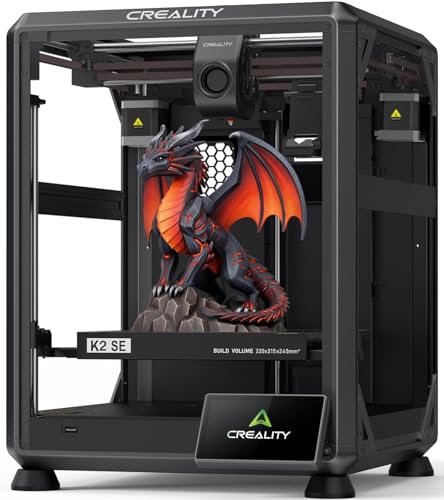
【500mm/s High-Speed Fast Printing】Driven by a lightweight CoreXY motion system, the Creality K2 SE delivers up to 500mm/s high-speed printing with 20,000mm/s² acceleration. The built-in vibration sensor and input shaping algorithm actively reduce ringing and resonance for smoother walls, sharper details, and consistently high-quality results—even at fast print speeds
Future Projections and Practical Takeaways
Here’s what actually happens when platform trends and model growth change what you can print: your options broaden over years, and that affects what you should save and where you look.
Why this matters: if formats or ecosystems lock files down, you’ll lose access to models you relied on. For example, a small creator on Printables switched to 3MF-only uploads and their multi-part cosplay helmet files stopped working for people using other slicers; users had to re-export everything manually.
1) Expect gradual change and plan for it.
- Projection: at current growth rates, Printables will likely close much of the model gap over the next 5–20 years, bringing more multicolor-ready files into circulation.
- Action: every 6 months, scan your favorite repos for new multicolor or multi-part uploads and tag 10 models to test-print.
2) Choose repositories by what you need.
- Why it matters: different sites make different trade-offs that affect your workflow.
- Example: you want phone-to-printer convenience — MakerWorld routes models from your phone directly to supported printers with a single tap, so a 15-minute print setup goes down to about 2 minutes.
Steps to pick:
- If you need format flexibility, use Printables.
- If you want seamless phone-to-printer workflows, use MakerWorld.
- If you want the largest archive for obscure parts, use Thingiverse.
3) Protect your models and your prints.
- Why it matters: platforms change policies and formats, and you could lose access to files you rely on.
- Example: a hobbyist lost a decade of tuned printer profiles after a site deprecated legacy downloads; they rebuilt profiles from local backups in two weekends.
Steps to do right now:
- Back up favorite models locally in both STL and original format.
- Archive the slicer profile you used as a .json or .ini file.
- Keep one copy on an external drive and one in a cloud folder.
4) Watch licensing and advocate for open exports.
- Why it matters: licenses and export options determine whether you can modify, print, or redistribute a model.
- Example: someone wanted to remix a lamp design but couldn’t because the upload used a restrictive license; they contacted the author, who then released a remix-friendly version.
Steps to check license and act:
- Read the license before downloading.
- If it’s restrictive, message the creator and ask for a remix or an export.
- If a platform forces a single slicer or file type, vote with your account settings and request open export options via support tickets.
5) Expect policy and format friction — and respond practically.
- Why it matters: platforms that require 3MF or favor a single slicer reduce access for people using other tools.
- Example: a makerspace had to buy a slicer subscription to handle a 3MF-only repo; they saved money by exporting community uploads to universal STLs monthly.
Practical routine:
- Set a monthly export session: convert new 3MF files to STL and save them.
- Keep a simple spreadsheet listing file name, original format, license, and where you saved it.
Final takeaway: back up files, check licenses, pick repos by the features you actually use, and run short monthly maintenance so future platform shifts don’t break your prints.
Frequently Asked Questions
How Do Licensing Differences Affect Commercial Use of Free Models?
Licensing clarity matters: I tell you that clear licenses determine if you can sell prints, while derivative restrictions can forbid commercial adaptations or require attribution; I’ll always check each model’s license before using it commercially.
Can Models Be Removed or Monetized Later by Uploaders?
Yes — I’ll tell you: uploaders can revoke access or perform license swaps, but platforms’ terms and cached downloads complicate removal or later monetization; I’d check each site’s policy before assuming control.
What Hidden Costs Arise From Required Proprietary Software?
You’ll face proprietary lock in and hidden update fees: I’ll need vendor software, risk file incompatibility, pay for upgrades or support, lose flexibility, and endure platform dependencies that raise long-term costs and curb my options.
How Do Repositories Handle DMCA or IP Disputes?
Like a referee blowing a whistle, I say repositories follow copyright takedowns, investigate claims, and offer ownership verification tools; I’ll help you document provenance, appeal removals, or contact uploaders to resolve DMCA or IP disputes.
Are Community Donations or Tips Possible for Creators?
Yes — I sometimes see donation buttons and tipping integration on profiles; I encourage readers to check each site’s creator pages, link to PayPal/Patreon, or use platform tips where supported to directly support designers.